Create Animated Text in CapCut for Better Videos
Introduction
Before trying complicated effects, start with something simple. Animated text is often enough to make your videos look more professional without much extra effort. Plain, static captions get ignored. Titles that fade in, slide across the frame, or pop on cue actually hold a viewer’s eye — and that’s true whether you’re cutting a TikTok clip, an Instagram Reel, a YouTube Short, or a longer video on CapCut Pro APK.
It’s not just for social clips either. A tutorial with animated callouts is easier to follow. A gaming montage feels punchier. Travel footage looks more like something you’d see on a streaming service. Even a business presentation reads as more polished once the titles have a bit of motion. And you don’t need years of editing experience to pull it off — CapCut’s animation tools are built with beginners in mind.
This guide walks through everything from the basics to more advanced tricks like keyframes and motion tracking, so your text doesn’t just move — it actually adds something to the video.
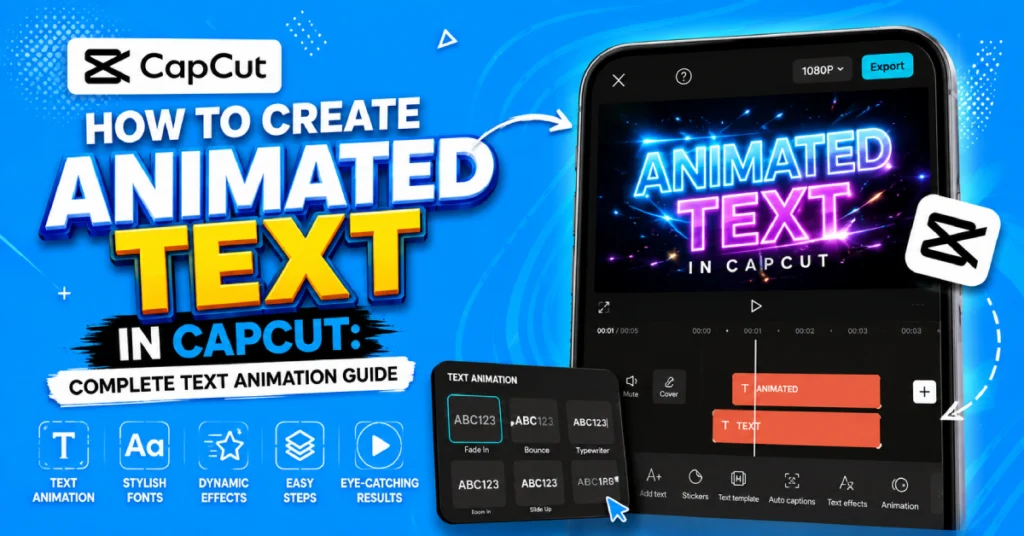
What Is CapCut Text Animation?
At its core text animation is simply text that moves. If popping onto the screen and disappearing right away text animation can fade in slide from off-screen, bounce, zoom rotate or even loop while viewers are watching text animation.
Here’s a quick sense of what different animations are typically used for:
| Animation Type | Best Use |
| Fade | Titles and introductions |
| Slide | Tutorials and presentations |
| Zoom | Product highlights |
| Pop | Social media videos |
| Bounce | Fun content and Shorts |
| Rotate | Creative edits |
| Loop | Call-to-action text |
| Keyframe Animation | Custom movement |
The point isn’t to make everything move for the sake of it — it’s to draw the eye toward whatever matters most in that moment of the video.
Why Bother With Animated Text at All?
People notice movement before they notice anything static. That’s just how our attention works. A well-timed animation takes advantage of that instinct to guide viewers toward the important stuff, rather than distracting from it.
You’ll see animated text used for things like:
- Video titles
- Chapter headings
- Quotes
- Speaker names
- Product names
- Educational notes
- Gaming highlights
- Social captions
- Promotional messages
- Call-to-action buttons
To be honest the timing of the information makes a difference. When the information appears only when it is relevant people are more likely to keep watching the video of staring at a screen that is cluttered with information.
How to Create Animated Text in CapCut?
Start by adding a text layer. Move your playhead to the moment you want the text to appear, tap Text, and type your message.
From there, adjust:
- Font
- Size
- Color
- Position
- Shadow
- Outline
Your text is all set. Now it is time to open the Animation panel. CapCut makes it easy to find the animation. It has In, Out and Loop. Just pick the one that goes well with your video and watch it a few times.
No really. You don’t need the effect on the list. Understated animation always looks more professional and it stays appealing longer than flashy alternatives.
The Three Types of Text Animation
In Animation
This is how your text arrives on screen — Fade, Slide, Zoom, Pop, and Rotate are the usual suspects. These work particularly well for opening titles, new chapters, or whenever you’re shifting topics. A gentle entrance almost always reads cleaner than text just snapping into view.
Out Animation
This governs how text leaves. Fade Out, Slide Away, Shrink, and Rotate Out are common choices, and they help smooth over the transition between scenes instead of letting things feel abrupt.
Loop Animation
Loop animations keep moving for as long as the text is visible — think Bounce, Floating, Pulse, or Wiggle. They’re great for subscribe reminders, prices, or limited-time offers. Just don’t loop every title in your video; constant motion gets tiring fast.
Adding Animated Text on Android
The process only takes a couple of minutes:
- Open CapCut and import your video.
- Tap Text and type your title.
- Style it — font, color, size, whatever fits.
- Open the Animation menu and pick an entrance, exit, or loop effect.
- Preview before you export.
If the timing feels off — too fast, usually — just stretch the animation’s duration until it matches your video’s pace. For more Android-specific editing tips, our CapCut for Android guide covers a lot of ground that pairs well with animated text.
Adding Animated Text on iPhone
The iPhone workflow is nearly identical: new project, import footage, add a text layer, style it, then head into the Animation menu to pick your effect. Apple devices tend to preview smoothly, which makes it a little easier to catch anything that looks unnatural before you export. Our CapCut for iOS guide has more tips specific to iPhone and iPad.
Creating Animated Text on PC
Editing on desktop gives you more room to work with. Import your footage, add a text layer, adjust the font and position, then apply your entrance and exit effects through the Animation controls. Preview it, and you’re done. The bigger screen also makes it easier to line text up without covering something important in the frame — our CapCut for PC guide dives deeper into desktop-specific features.
Creating Animated Text on Mac
Mac follows nearly the same steps — import, add text, style it, animate, preview. A larger display helps with precise positioning and keeping spacing consistent across a longer project. See our CapCut for Mac guide for more on that workflow.
Matching Animations to Your Video Type
Not every animation suits every kind of video. A high-energy gaming edit and a calm business presentation shouldn’t use the same style.
| Video Type | Recommended Animation |
| Tutorials | Fade |
| Gaming | Pop |
| Product Reviews | Zoom |
| Educational Videos | Slide |
| Travel Videos | Fade |
| Vlogs | Slide |
| Business Content | Fade |
| Shorts | Bounce |
| Reels | Pop |
| TikTok | Zoom |
Sticking to one or two animation styles throughout a project usually looks better than switching things up constantly.
Customizing Your Text Animation
Animation only does half the work — typography carries the rest. Beyond picking an effect, pay attention to:
- Font style
- Text size
- Color
- Opacity
- Shadow
- Outline
- Letter spacing
- Line spacing
Here’s the thing — good design doesn’t need lots of colors. Make titles larger, keep supporting text smaller, and avoid filling the screen with too many different shades. And sticking with the same font family across the whole project goes a long way toward looking polished.
Building Custom Animation With Keyframes
Presets are fast, but keyframes give you full control over how text moves. Instead of picking from a menu, you set the path yourself — move text across the frame, build a custom zoom, rotate a title, shift opacity, or animate diagonally.
Our How to Make Smooth Keyframes in CapCut PC guide covers this in more depth. A lot of experienced editors actually blend presets with keyframes to get motion that feels more original than either one alone.
Making Text Follow a Moving Object
Motion tracking takes animated text a step further by locking it to a person or object as it moves through the frame — instead of staying fixed in one spot. It’s especially useful for player names, product labels, face tags, tutorial callouts, and sports footage.
Do you think tracking is a small thing? It is not. **How to Track an Object in CapCut** will show you the process. Good tracking helps the video feel like it was meant to be that way.
How Long Should Text Stay on Screen?
Timing matters as much as the animation itself. As a rough guide:
- One or two words: 1–2 seconds
- A short sentence: 3–4 seconds
- A longer sentence: 5–6 seconds
Don’t cut text short just to speed up the video — give people enough time to actually read it. Good pacing helps retention more than shaving off a second or two ever will.
Creating a Cinematic Look With Text Animation
Not every video calls for flashy motion. For travel edits, documentaries, or anything with a cinematic feel, slower and simpler animations tend to work better. Fade, Slide, and Zoom are popular here because they read as clean rather than showy.
Give titles enough screen time to be read comfortably, and pair simple animation with minimal fonts and consistent colors for a more premium feel. Try to avoid stacking multiple effects on one piece of text — a single smooth animation usually has more impact than three layered together.
Syncing Text Animation With Music
When animation lines up with the beat of your soundtrack, it instantly feels more intentional. Instead of dropping titles randomly, try timing them to hit on a beat or during a key moment in the track — it creates a much stronger connection between what viewers see and hear.
Want to add music the way? Start with **How to Add Music to CapCut**. It covers copyright- soundtracks. After that keep the music in the background. Let the text stay in focus. Small timing changes often improve the result.
Text Animation for Social Media
Here is the thing. Every counts on TikTok, Reels and Shorts. On these platforms quick animation often works better than transitions. Effects like Pop, Zoom, Slide and Bounce on TikTok, Reels and Shorts fit that pace naturally. That said, don’t animate every single title dramatically. Too much movement competes with your actual content instead of supporting it. Balance is the goal.
Positioning Text Properly
Where you place your animated text matters just as much as how it moves. A few rules of thumb:
- Keep titles centered when introducing a topic.
- Place subtitles near the bottom of the frame.
- Leave breathing room around the edges.
- Stay inside the safe area so nothing gets cropped.
Good positioning keeps text readable whether someone’s watching on a phone or a bigger screen.
Keeping Animated Text Sharp
Blurry titles usually come down to poor export settings or stretching text beyond its original size. Use good source footage, avoid over-scaling, and pick export settings that match your target platform. Our How to Improve Video Quality in CapCut guide has more on this if quality’s been an issue for you.
Can You Combine Motion Blur With Text Animation?
Motion blur is best used as a finishing touch. It makes moving text look smoother and more natural, in videos about games or sports.. Do not use too much motion blur. It makes the text hard to read. **How to Add Motion Blur in CapCut** will cover the ways to use it.
Can You Combine Voiceovers With Animated Text?
Definitely, and the two pair well together. As narration hits a key point, having the relevant words animate onto screen reinforces what’s being said and makes it easier to remember.Why make people rely on the volume? Many watch with no sound. **How to Add Voiceover in CapCut** walks you through recording and editing narration.
Common Mistakes to Avoid
A few habits show up again and again in beginner edits:
- Using too many animation styles in one project
- Choosing fonts that are hard to read
- Making text too small
- Overloading the palette with colors
- Animating every single word
- Leaving text on screen too briefly
- Covering up important parts of the frame
- Inconsistent spacing
Simpler, more consistent choices almost always beat a pile of effects.
A Few Best Practices
- Stick to consistent fonts throughout — two or three at most.
- Choose colors that contrast well against your background.
- Match animation speed to your video’s overall pace.
- Preview every animation before you export.
- The resize isn’t always the step. If you’re posting the video on multiple platforms check your titles after changing the aspect ratio. **How to Change Aspect Ratio in CapCut** explains the rest.
Is CapCut Pro Worth It for Text Animation?
Honestly, the standard version already covers most of what you’ll need. Depending on your device, account, and region, CapCut Premium might unlock extra fonts, templates, and creative assets — but the fundamentals (good timing, clean fonts, thoughtful spacing) matter more than having a bigger effects library. Most creators can get professional-looking results with the free tools alone.
Curious for more? Check out our CapCut APK homepage for additional guides.
Conclusion
A few simple changes can completely improve the look of a video. One of these changes is animated text. Animated text is very helpful. You can pair it with titles. You can also pair it with captions.. You can pair it with smart timing. All of these things make your videos much easier to watch. This is true for tutorials and gaming clips and travel edits and social content. Animated text is very helpful for these types of videos.
Really do not try to use every effect on the day. Just start simple. Then build your skills with keyframes and motion tracking. Good timing and consistent fonts will take you a lot further on **YouTube, TikTok, Reels, Shorts**. Anywhere else you upload your videos.
Frequently Asked Questions
What is CapCut text animation?
What is changing is the movement. Your titles and captions and subtitles do not just appear anymore. Effects like Fade and Slide and Zoom and Pop help them come onto the screen. This makes everything easier to read and more interesting.
How do I create animated text in CapCut?
To be honest this process is not that hard. You just need to add a text layer to make it look nice and then go to the Animation menu. There you can choose an entrance, exit or loop effect, play it back and make changes to the timing.
Can I customize text animations in CapCut?
Yes, You can go well beyond the preset effects. Adjust fonts, colors, shadows, outlines, opacity, and spacing, or use keyframes to create custom movement with much more control over the final result.
Which text animation works best for TikTok and YouTube Shorts?
Pop, Zoom, and Fade tend to perform well since they grab attention fast while staying easy to read. Match the animation to your video’s tone rather than defaulting to whatever looks flashiest.
Can I use keyframes with CapCut text animation?
Yes, Keyframes let you build custom movement — position, scale, rotation, opacity — instead of relying only on presets, which opens up more unique effects.
Does CapCut Premium offer more text animation features?
It can, depending on your platform and subscription — extra fonts, templates, and assets are common perks. That said, the standard tools are more than enough for most projects.
If this helped you build better titles, our other CapCut Blog tutorials cover plenty more editing techniques worth exploring.