How to Create Smooth Keyframes in CapCut PC?
Introduction
How to Make Smooth Keyframes in CapCut PC?, is something many beginners search for when their animation looks stiff or robotic. You add keyframes, but the motion feels strange. It moves too fast. It stops suddenly. It just does not look natural.
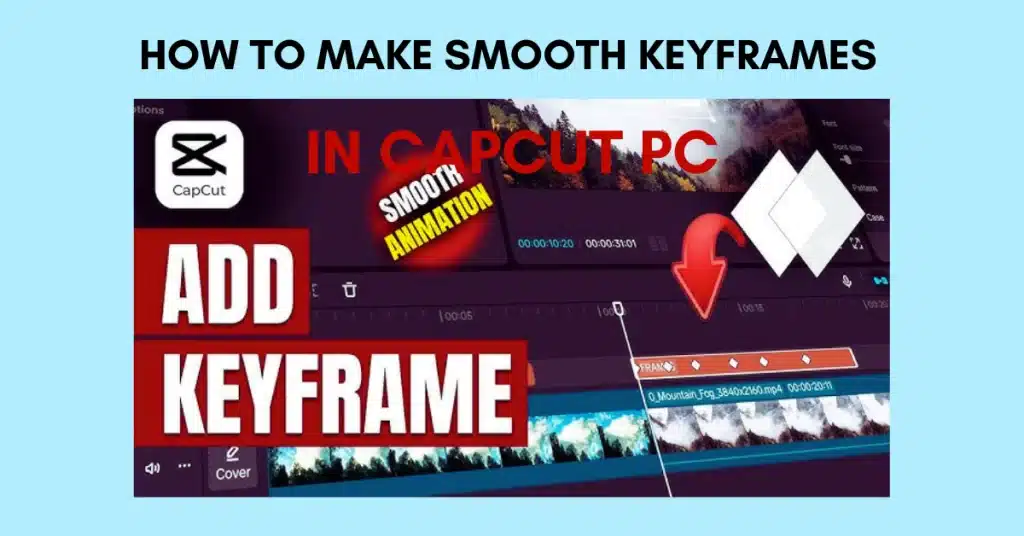
If you are learning How to Make Smooth Keyframes in CapCut PC, don’t worry. I also struggled at first. Honestly, smooth animation is not about adding more keyframes. It is about controlling speed and movement smartly. In this guide, I will explain everything in very simple words.
What Are Keyframes in CapCut PC?
Keyframes are control marks that tell your video what happens at a specific point in time. For example, in the second one, your text is small. At second three, it becomes big. CapCut creates movement between those two points automatically.
In simple words, keyframes control position, scale, rotation, and opacity. When you use a CapCut PC, you get better control with a mouse and bigger screen. I personally prefer the desktop because it feels more accurate than touch editing.
Why Smooth Keyframes Matter in Video Editing?
Smooth motion makes your video feel professional. When movement is soft, viewers enjoy watching. But when motion is sharp and sudden, it looks cheap. You know that feeling when something jumps too quickly? It breaks attention.
If you really want to learn How to Make Smooth Keyframes in CapCut PC, you must understand easing. Without easing, your animation stays linear. Linear motion looks robotic. Smooth motion looks human. That is the difference.
How to Make Smooth Keyframes in CapCut PC Step by Step?
Go ahead and open your CapCut PC project. After that, import your media and move it onto the timeline section. Click on the clip. Go to the basic panel where you see scale and position.
Move the playhead to the starting point. Click the small diamond icon to add your first keyframe. Now move the playhead forward and change the scale or position. CapCut will create a second keyframe automatically.
Now comes the important part. Right click on the keyframe and look for easing options. Choose Ease In, Ease Out, or Ease In-Out. Preview the animation. If it still feels fast, adjust timing by dragging the keyframe further apart. A small distance gives fast motion. Bigger distance gives smooth motion.
That is the basic method of How to Make Smooth Keyframes in CapCut PC. Practice this a few times and you will see big improvement.
Understanding Ease In and Ease Out
Ease In means the animation starts slowly and then becomes fast. Ease Out means it starts fast and ends slowly. Ease In-Out means slow at start and slow at end.
Why does this matter? Because real life movement is not linear. When you push a door, it does not move at the same speed instantly. It starts slowly. That natural feeling is what easing gives to your video.
Using Graph Editor for More Control
CapCut PC also gives graph control for better smoothness. Select your keyframes and open the curve or graph section. You will see a line showing motion speed.
Drag the curve handles gently. Make soft curves, not sharp angles. Sharp angles create sudden speed changes. Soft curves create cinematic flow. When I edit zoom transitions, I always adjust the graph manually. It gives more natural control.
This step really helps when learning How to Make Smooth Keyframes in CapCut PC at a deeper level.
Common Mistakes When Adding Keyframes
Many beginners add too many keyframes. More keyframes do not mean better animation. It often creates messy motion. Don’t add too many. Two or three keyframes are enough in most situations.
Another mistake is ignoring previews. Always play your clip after editing. Check if motion feels smooth. Also avoid large jumps in position. A big sudden movement looks rough and unprofessional.
Best Settings for Smooth Zoom Effect
Zoom effect is very common. But most people zoom too fast. That is the problem. Start with scale 100 percent. Add the first keyframe. Move 3 to 5 seconds forward. Increase scale to 110 or 115 only. Keep it slow. Apply Ease In-Out.
This small zoom feels cinematic. Big zoom feels aggressive. Honestly, small changes look more professional than big dramatic moves.
How to Create Smooth Pan Effect?
Pan effect means moving video left or right slowly. Add the first keyframe at normal position. Then move the playhead forward and change horizontal position slightly.
Do not move too far. Keep movement small and slow. Apply easing. Preview again. I usually use a pan effect for landscape shots. It adds life without distracting the viewer. Simple movement, big impact.
Smooth Text Animation with Keyframes
Text animation also needs smooth motion. Add text to the timeline. Set the first keyframe with low opacity or lower position. Move forward and increase opacity or raise position.
Apply Ease Out for entrance. Text will appear softly. Avoid fast popping text. The slow entry looks elegant. If you are editing tutorial videos on CapCut PC, smooth text animation improves clarity and professionalism.
Advanced Tips for Professional Smooth Motion
Combine scale and position together. For example, small zoom and slight upward movement. This creates depth. You can also enable motion blur if available. Motion blur hides small rough edges in animation.
Keep your timeline clean. Delete extra keyframes. Well, honestly, a clean timeline gives clean results. Editing is like cooking. Too many spices spoil the taste.
Can You Make Smooth Keyframes on CapCut Android?
Yes, you can use the CapCut Android version for keyframes. But control is limited compared to desktop. Touch editing is less precise. If you want better graph control and smoother animation, CapCut PC is more comfortable. A bigger screen helps a lot.
Editing Experience on CapCut Mac and CapCut iOS
CapCut Mac works almost the same as the PC version. Smooth interface and precise control. If you use Apple devices, editing feels very clean.
CapCut iOS is good for quick edits. But for detailed keyframe adjustments, the desktop version feels easier. Mouse control simply gives better precision.
Should You Upgrade to CapCut Pro for Better Keyframe Control?
CapCut APK offers advanced features like better effects and transitions. For normal keyframe smoothing, a free version is enough. Some people search for CapCut Mod or CapCut Pro APK Download, but it is always safer to use the official version. Premium tools help, but skills matter more than features.
Is CapCut Mod APK or CapCut Old Version Good for Keyframes?
Many users try CapCut Mod APK for unlocked features. Honestly, modified apps can be risky. They may contain bugs or security issues.
If you need installation, use the official CapCut APK Download source. Avoid random websites. CapCut Old Version may not support updated graph tools, so better use the latest stable version.
Why CapCut PC Is Best for Smooth Animations?
CapCut PC gives you full control. You can adjust curves, timing, and movement with accuracy. A bigger screen means you see details clearly.
When you truly understand How to Make Smooth Keyframes in CapCut PC, your videos start looking cinematic. Not perfect in one day, but slowly you improve. Practice is key.
Conclusion
Smooth keyframes are not magic. They need patience and small adjustments. Focus on easing, timing, and subtle movement. Keep animation natural.
If you practice How to Make Smooth Keyframes in CapCut PC regularly, your editing skills will grow fast. Start simple. Experiment with zoom and pan. Keep learning.
Now open CapCut PC and try it yourself. You will see the difference.
FAQs
1What are keyframes in CapCut PC?
Keyframes are markers on a timeline that you use to change things like where something’s, how big it is if it is turned around and if you can see it. If you add more than one keyframe you can make smooth movements and animate things in your video.
How do I smooth keyframes in CapCut PC?
To improve your animations use Ease In, Ease Ease In Out on your keyframes when you can. Adding space between your keyframes on the timeline also helps. This creates more natural motion.
Why does my animation look robotic?
Using motion can make animations look mechanical. This is because the objects never speed up or slow down.. If you use easing effects and adjust the time between keyframes the animation looks more natural. The objects can move smoothly which looks more real.
Is CapCut PC better than mobile for keyframes?
Yes, CapCut on Windows and Mac has a workspace, advanced controls for the timeline and better keyframe management. These features make it simple to build animations and adjust the motion effects with more precision.
Can I use smooth keyframes without CapCut Pro?
Yes, the free version of CapCut has keyframe animation. You can create animations without CapCut Pro. If you want more CapCut Pro has premium editing tools and extra features.
How many keyframes should I use?
In cases using two or three keyframes creates the best results for animations. If you use a lot of keyframes it can be harder to edit the animations. The movement may look less natural.
Now you know How to Make Smooth Keyframes in CapCut PC, so go ahead and create smooth, cinematic animations with confidence.