How to Add Subtitles to Videos in CapCut
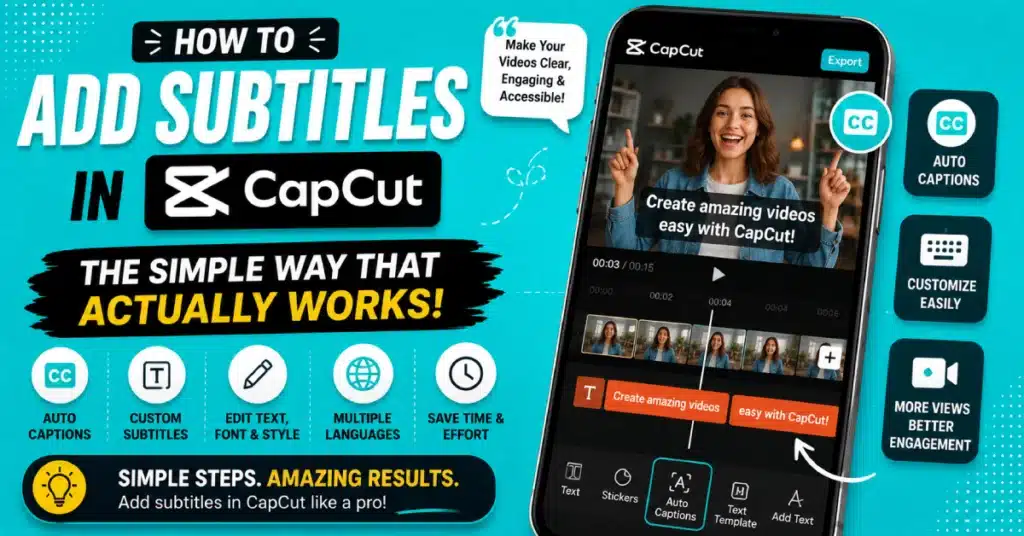
How to add subtitles in CapCut — probably the single most asked question from anyone new to short-form editing. Makes sense, honestly. Captions boost watch time, help with accessibility, and a huge chunk of people scroll social media on mute anyway, waiting for the bus or sitting in a meeting pretending to pay attention. Skip captions and you’re losing a good part of your audience before they even hit play.
Good news is, figuring out how to add subtitles in CapCut Pro takes maybe five minutes once you know where to look. Two solid paths here — auto-generated captions that transcribe your voice basically instantly, and manual text boxes for when you want full control over timing and wording yourself. I usually go auto first, then clean up whatever word it botched. Saves way more time than typing every single line from scratch, trust me.
Roughly what’s coming up:
- Why subtitles actually matter, beyond the obvious
- A table comparing subtitle methods in CapCut
- Steps broken down for mobile, desktop, and Mac
- FAQs people keep asking about captions in this app
Why Bother Adding Subtitles At All?
Beyond accessibility, which matters plenty on its own, subtitles keep people watching longer. Most platforms auto-play videos muted by default now, so if your whole message lives only in the audio, you’re basically invisible to anyone scrolling without headphones plugged in. Captions close that gap instantly, no real effort needed on your end.
There’s an algorithm angle too, though nobody can really prove exact numbers on this. Captioned videos tend to hold attention a bit longer, and longer watch time usually helps a video get pushed further by whatever platform you’re on. Worth doing regardless, honestly, even setting the algorithm stuff aside entirely.
Quick Table: Subtitle Methods In CapCut
| Method | Best For | Effort Level |
|---|---|---|
| Auto Captions | Fast turnaround, clear audio | Low |
| Manual Text | Precise wording, custom timing | Medium |
| Voice-to-Text Sync | Multiple speakers, longer videos | Medium |
| Imported SRT File | Pre-written scripts | Low once file’s ready |
Gives you a rough sense of which route fits your workflow before we get into the actual steps.
How To Add Subtitles In CapCut Automatically
Fastest route, and honestly the one most people end up sticking with. Open your project, tap the Text tool, pick “Auto Captions.” CapCut Pro APK listens to your audio and spits out timed subtitles on its own, usually within a minute or two depending how long the clip runs.
Once it’s done, scroll through and fix whatever it misheard — background noise, accents, fast talkers, all of that trips up the transcription a little. Still beats typing every line by hand though. By a mile, honestly.
How To Add Subtitles In CapCut Manually
Want full control instead? How to add subtitles in capcut manually goes like this — tap Text, hit “Add Text,” type your caption directly in. Drag the clip along the timeline to set exactly when it shows up and disappears. Repeat, line by line.
- Tap Text, then Add Text
- Type your caption
- Adjust the timing bar
- Style font, size, position
- Do it again for the next line
Takes longer than auto, sure. But you get pixel-perfect timing and wording, which actually matters for scripted stuff or heavy narration.
How To Add Subtitles In CapCut Mobile
On phones, how to add subtitles on capcut mobile follows basically the same steps above — mobile and desktop aren’t all that different anymore, honestly, not like a few years back. Tap the plus icon on your timeline, choose Text, then auto-generate or type manually, whichever fits that particular video.
How To Add Subtitles In CapCut Desktop
Desktop users get nearly the same flow. How to add subtitles in CapCut desktop works almost identically, just with more screen space to work with, which makes fine-tuning timing genuinely easier. Auto caption button sits in the same spot under the Text panel, and dragging clips along a wider timeline beats pinching around on a tiny phone screen.
How To Add Subtitles In CapCut PC
Same story for how to add subtitles in CapCut pc, since the PC build and its Mac counterpart share most of the same interface underneath. Editing from a laptop regularly? Keeping CapCut for PC updated gets you the newest caption styles and transcription improvements as they land.
How To Add Subtitles In CapCut Mac
Mac users, same toolset too. How to add subtitles in CapCut mac runs through an identical Text panel, auto captions and manual entry sitting right next to each other. Haven’t grabbed it yet? CapCut for Mac gets you the full desktop feature set rather than some stripped-down version.
How To Do Auto Captions On CapCut PC
Specifically for the auto-generated route on desktop, how to do auto captions on capcut pc mirrors mobile pretty closely — select your audio clip, hit Text, choose auto captions, let it transcribe. Desktop processes this a touch quicker usually, thanks to stronger hardware than most phones can offer.
Adding Subtitles With Voice Sync
Videos with narration or multiple speakers? How to add subtitles in capcut with voice works best paired with speaker labels, if your version supports them. Keeps each line matched to whoever’s actually talking, which matters a lot for interviews or anything with more than one voice going.
Can You Add Subtitles In CapCut For Free?
Yes, genuinely. How to add subtitles in capcut for free is just the standard workflow, nothing hidden behind a wall. No premium needed for basic captions, auto or manual. Some fancier animated caption styles sit behind CapCut’s paid tier, sure, but core subtitle functionality stays free for everyone using the app.
Specifically after how to add subtitles in capcut without pro? Stick to default text styles instead of the premium animated ones, and you’ll get fully working subtitles without spending anything at all.
Doing This Online Or Without The App Installed
Wondering about how to add subtitles in capcut online — there’s a web-based version through CapCut’s official site mirroring most desktop features. Useful when you’re stuck on a computer without the app installed yet. Not quite as full-featured as the downloaded version, but covers subtitle basics fine.
Working With A Finished CapCut Video
Once you’ve got how to add subtitles in capcut video projects figured out generally, it becomes routine pretty fast. Most creators land on a personal style eventually — font, position, colour — reusing that same setup across every future video for consistency, which honestly helps branding way more than people expect going in.
Getting Started With CapCut
Haven’t installed the app yet? The official CapCut page covers every platform, and for Android specifically, the CapCut Play Store listing gets you set up in a couple minutes flat. Once it’s running, poking through the CapCut Premium caption styles is worth a glance too, even if you end up sticking mostly to the free defaults day to day.
Want quick access on mobile right now? The CapCut APK package installs fast, pair it with CapCut for Android or CapCut for iOS depending on whatever device’s actually in your hand.
Wrapping Up
So that’s pretty much every angle on how to add subtitles in CapCut — mobile, PC, Mac, auto or line-by-line manual. Pick whatever fits your patience level today, and you’ll have clean, readable captions running within a few minutes, honestly not much more than that.
Ready to caption your next video properly? Download CapCut Latest Version and get those subtitles running before your next upload goes out.
Frequently Asked Questions
Does CapCut’s auto caption feature work in every language?
CapCut supports auto captions across several major languages, though accuracy shifts depending on accent, background noise, and how fast someone’s talking. English tends to perform best overall, while less common languages sometimes need more manual cleanup afterward.
Can I edit auto-generated captions after they’re created?
Yes, absolutely. Tap any generated line to edit the text, tweak its timing, or change the style. Actually the recommended workflow, since auto captions rarely nail every single word perfectly the first time round.
Do subtitles slow down my video’s export time?
Slightly, yes, since CapCut renders text as part of the final file. Difference is usually pretty minor unless you’re stacking heavily animated caption styles across a long project, which does add a bit more processing time overall.
Is there a limit to how many subtitle lines I can add?
No strict limit for standard text captions, though very long videos with dozens of lines can slow your timeline’s responsiveness while editing. Breaking longer projects into sections sometimes keeps things running a bit smoother.
Can I import subtitles from an SRT file into CapCut?
Some versions let you import SRT files directly, saving time if you’ve already got a written transcript ready to go. Check your specific app version’s import options first, since availability shifts a bit between platforms and updates.
Why do my captions look different on mobile versus desktop?
Font rendering and default styling vary a bit between platforms, mostly down to how each version handles text display underneath. Sticking to CapCut’s standard fonts usually keeps things looking consistent no matter what device you’re on.
Ready to give your videos that extra polish? Add subtitles in CapCut today, and watch your engagement pick up almost right away.