How To Add Text and Captions in CapCut With Easy Editing Steps
Introduction
New editors often wonder how to add text and captions in CapCut. I remember my first video. It looked fine, but without captions, it felt empty. Once I added text, the whole video felt alive. Small change. Big difference.
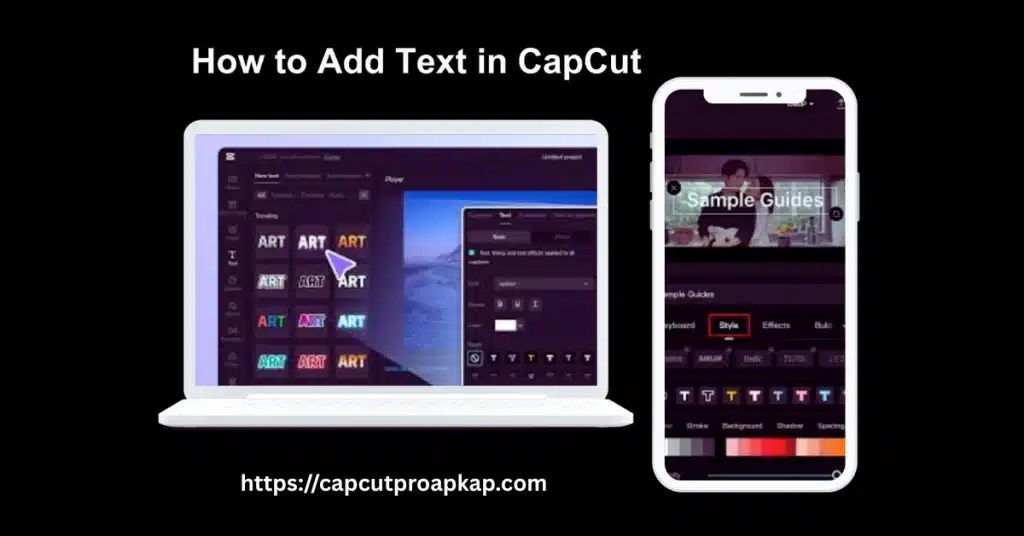
Posting content online? Then learn how to add text and captions in CapCut. Lots of people scroll without audio. Captions make sure they still get the point.
Why Text and Captions Are Important in CapCut?
Let’s be honest. People scroll fast. You have maybe three seconds to grab attention. Clear text on screen stops the scroll. It tells viewers what your video is about.
Captions also build trust. When your words appear on screen, your message feels stronger. It looks more professional. And for people who cannot hear clearly, captions make your content accessible. That alone is a good reason to use them.
Getting Started with CapCut
Before learning How to Add Text and Captions in CapCut, install the app. It works smoothly on CapCut Android and CapCut iOS. If you prefer editing on laptop, you can use CapCut PC or CapCut Mac. The interface looks almost the same everywhere. There is a free version and also CapCut Pro . I personally started with the free version. You already get enough tools for simple captions. Pro helps with premium fonts and effects, though it is not required.
How to Add Text in CapCut Step by Step?
Open CapCut and tap on New Project. Choose your video. Once it loads into timeline, look at the bottom menu and tap Text. Then tap Add Text. A text box will appear.
Type your sentence. Drag it to place anywhere on screen. Stretch the text layer in timeline to control how long it shows. That is it. Simple and clean.
Choosing the Right Font and Color
Do not overthink fonts. Pick something clean and easy to read. Simple bold fonts work best. If your background is dark, use white text. If background is bright, use black or dark color.
Sometimes I add a small shadow or background box. It makes the text stand out more. Small details like this improve quality a lot.
How to Add Captions Automatically?
CapCut Mod APK Download has an Auto Captions feature that saves time. Go to Text and select Auto Captions. Choose language and tap Generate. In a few seconds, captions will appear on timeline.
But here is something important. Always check the words. Auto captions are not perfect. Sometimes names or accents confuse the system. Edit small mistakes before exporting.
Fixing Caption Timing
After captions are generated, play your video slowly. If text appears too early or late, drag the caption layer slightly. Even half second matters.
Keep each line short. Long lines are hard to read quickly. Break them into smaller parts. Your viewer will thank you.
How to Add Manual Captions?
If you want full control, add captions manually. Tap Text and then Add Text for each sentence. Yes, it takes more time. But it gives better accuracy.
I usually use manual captions for important tutorials. It helps me control every word. You can adjust timing perfectly and avoid mistakes from auto tool.
How to Customize Text Styles in CapCut?
CapCut offers many text templates and effects. You can add animation, outline, shadow, or glow. But honestly, do not overuse effects. Simple text looks more professional.
If you want more styles, some users try options like CapCut Pro APK or even CapCut Mod APK. These versions provide unlocked features. Still, using the official version is always safer and more stable.
Using Text Animations Smartly
There are three main animation types. In animation, Out animation, and Loop animation. In animation controls how text enters. Out animation controls how it leaves. Loop animation repeats effect.
Use soft animations for educational videos. Use bold animations for reels and shorts. But do not animate every single line. It becomes distracting.
Common Mistakes to Avoid
Many beginners add too much text. Keep it short. Only write what is important. Long paragraphs on screen look messy.
Another mistake is using low contrast colors. Yellow and white together reduce readability. Always watch the preview once before export. Small mistakes can reduce video quality.
Using CapCut Pro Features for Better Results
If you need advanced options, you can explore CapCut Pro APK Download. Pro version gives premium fonts and removes watermark. It also provides better export quality.
For normal caption tasks, the free version is fine. Choose Pro only if you edit videos regularly and want extra features.
Working with Different CapCut Versions
Some users prefer CapCut APK Download for manual installation. Others use CapCut Old Version if their device is slow. Each version has small differences in interface.
All versions work almost the same for adding text. Just open the bottom menu and select Text.
Exporting Video with Text and Captions
Finished adding captions? Press Export. Pick 1080p to get better quality. Select frame rate according to your need.
Before final export, watch the full video once. Check every word and its timing. Make sure placement looks good. After export, your video is ready to publish.
Pro Tips for Perfect Text and Captions
Keep sentences short. Use simple words. Match caption timing with speech. Maintain same font style throughout the video.
If you are serious about content creation, practice daily. The more you edit, the better you understand timing and placement. Like cooking, editing needs patience. The first result may be simple, yet you improve step by step.
Conclusion
You have gone through how to add text and captions in CapCut completely. It is simple work, but neat design and correct timing matter.
Text and captions make your videos more powerful and accessible. Whether you use free version or Pro, practice regularly. Once you master How to Add Text and Captions in CapCut, your content quality will improve naturally.
Keep editing. Keep learning.
FAQs
How do I add text in CapCut?
Start by opening CapCut project then tap Text. Choose Add Text. Inter text, apply font, color and animation and move text into place. Edit when text appears by dragging the CapCut text layer on the CapCut timeline.
Can I generate captions automatically in CapCut?
CapCut lets you create captions automatically. This is done with its Auto Captions feature. It uses speech recognition. Spoken audio is turned into text. This makes your videos more accessible. It also reduces work.
Is auto caption feature free in CapCut?
Yes, you can make basic Auto Captions without paying for CapCut Pro. But if you want AI tools, more languages and better editing options you might need to get a Pro subscription, which depends on the version of CapCut you have and where you are.
How to edit caption timing in CapCut?
To change when captions show up, pick the caption part. Pull its edges on the timeline. You can also break up, move or fix each caption to match what people are saying accurately.
Which font is best for captions in CapCut?
When I make videos I use fonts. Simple fonts like Sans Serif are easy to read on phones. They help people understand my videos in the media.
Can I use CapCut on PC to add captions?
Yes, CapCut on Windows and Mac is great for captions. You can add, edit. Customize them more easily. The big workspace and detailed controls help you place text, set timing, choose fonts and add animations.
Found this guide useful? Try adding text and captions in CapCut today and build your editing skills.