CapCut Photo Templates for Quick Stunning Slideshow Edits 2026
CapCut Photo Templates are useful when you have a lot of pictures but no real plan for editing them. You pick a ready design, add your photos, and see how they fit. The template takes care of much of the timing and movement, so you can spend more time choosing the pictures that actually belong in the video.
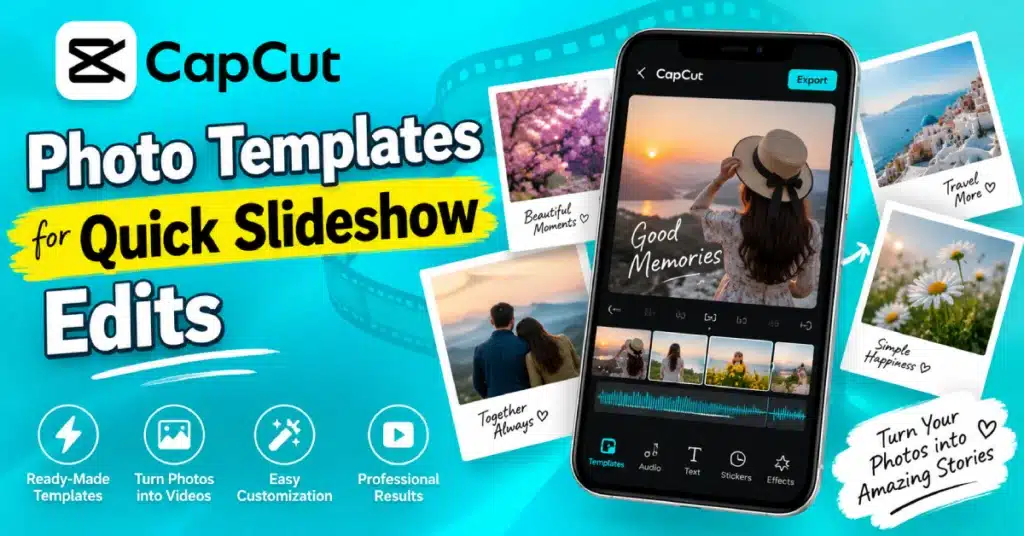
How Do CapCut Photo Templates Work?
A photo template is a video project that someone has already arranged.
The photos have set places on the timeline. Music may already be there. The template can also contain transitions, text, zoom effects, or other changes.
You simply replace the sample pictures with yours.
For example if you have 10 wedding photos find a template made for 10 photos add your pictures and CapCut APK will place them into the made edit.
That is the basic idea.
You are not really starting a video from scratch.
When Should You Use a Photo Template?
CapCut Templates make sense when the main thing you need is a quick slideshow.
They can work well for:
- Birthday pictures
- Wedding photos
- Family moments
- Holiday pictures
- Travel memories
- Couple photos
- School events
- Product pictures
They are also handy for short posts on TikTok, Instagram, and other social platforms.
A template is not always necessary. If you only have three pictures, making a small slideshow yourself may actually be quicker.
Finding the Right Template
Open CapCut and check the Templates section.
Browse the previews before choosing one. You may see many options with different looks and styles.
Before choosing one, check three things.
First, see how many photos it needs.
Second, watch how quickly the photos change.
Third, listen to the music.
These details can save you some frustration later.
Imagine using a very fast template for six slow family portraits. The pictures may flash by before anyone gets a proper look at them. A slower design would make more sense.
How to Add Photos to a Template?
Find your design open the template and tap the option to start using the template.
CapCut will show the photos or videos you need for the edit.
Select your own pictures.
Do not feel that you have to use your newest photos. The best picture for a particular slot might be an older one.
Look at the whole collection first. Pick images that tell some kind of story or at least look good together.
After selecting them, let CapCut build the video.
Then watch it.
That second part matters.
Check the Photos After CapCut Builds the Slideshow
A template does not know which part of your photo is important.
It may crop a picture in a strange way.
A person’s face could be too close to the edge. A group photo might lose someone from the frame. A product could be partly hidden.
If you notice something like this, try another photo.
Sometimes the problem is not the template. It is simply the wrong picture for that particular slot.
If the template gives you an option to adjust the image, move or resize it until the important part is visible.
Music and Photo Timing
A lot of photo templates are built around music.
The image changes may happen on the beat. This gives the slideshow a natural rhythm.
Choose a song, for your birthday video to give the pictures a brighter feel.
For wedding or family memories, a slower song may fit better.
The important thing is the match.
Do not choose a template only because the song is popular. When the music does not fit your photos the finished video can feel out of place because the music does not match the photos.
If you choose your song check that you have permission to use it in your video.
CapCut Photo Templates for Different Types of Photos
The same template will not suit every project.
| Type of photos | Style that may work |
| Wedding | Slow changes and soft transitions |
| Birthday | Quick cuts and lively music |
| Travel | Beat matched photo changes |
| Family | Simple and gentle movement |
| Couple | Smooth zoom and fade effects |
| Products | Clean layout with little distraction |
| School event | Multiple photos with simple changes |
| Holiday | Bright and faster slideshow |
Use this as a starting point, not a rule.
Your own pictures should decide the final style.
Make the Template Your Own
There is nothing wrong with using a ready made design.
The problem comes when you leave everything exactly as it is and the video feels like hundreds of other template posts.
Add something personal when possible.
Change the text. Use your own photos. Pick a different opening picture. Remove an element if the template allows it.
Even a small adjustment can help the slideshow tell your story in a personal way.
When you see a title, at the beginning replace the sample text with your trip date and location.
What If the Template Does Not Fit?
Do not force it.
If your photos look strange inside the design, go back and try another template.
You may also find that the template needs more photos than you have. That is another reason to check the preview before starting.
A template may also stop being available. This can happen when the creator removes it or when access changes by region and app version.
If you cannot find the exact template, look for a similar one.
There are often several designs with the same general style.
Photo Templates or Your Own Slideshow?
A template is mainly about saving time.
You get a ready structure and do not have to build every transition yourself.
Making the slideshow manually gives you much more control. You decide how long each photo stays, where the music changes, and what effect appears.
So the choice is simple.
If you want something quick, use a template.
If you already have a video idea in mind start with a project and shape it the way you want.
A Quick Check Before Exporting
Watch the finished slideshow once without touching the timeline.
Look at the photos rather than the editing controls.
Is the first picture a good one?
Does any photo disappear too quickly?
Can you read the text?
Does the music fit?
Are faces and important objects visible?
If something feels wrong, change it.
There is no need to keep a bad photo just because the template selected it.
Conclusion
CapCut Photo Templates can turn a pile of pictures into a finished slideshow with much less work. Choose a design that fits your photos, replace the sample images, and watch the result carefully. Fix poor crops, change anything that feels out of place, and add a personal touch where you can. The template does the groundwork, but your photo choices make the final video yours.
FAQs
What are CapCut Photo Templates?
They are ready made video designs that arrange photos with preset timing, music, transitions, effects, or text.
How do I use a photo template?
Open your chosen template, tap Use Template pick your pictures and preview the slideshow before saving the slideshow.
Can I use my own pictures?
Yes. You can replace the sample images with pictures from your device when the template supports photo replacement.
Why does CapCut crop my photo?
The template may use a frame with a different shape. Try adjusting the picture or replacing it with one that fits better.
Can I change the music?
This depends on the template. Some designs offer more editing choices than others, so check the available options after adding your photos.
How many photos should a slideshow have?
The best number depends on your content. Add pictures to tell the full story but avoid making the video repetitive or lengthy.