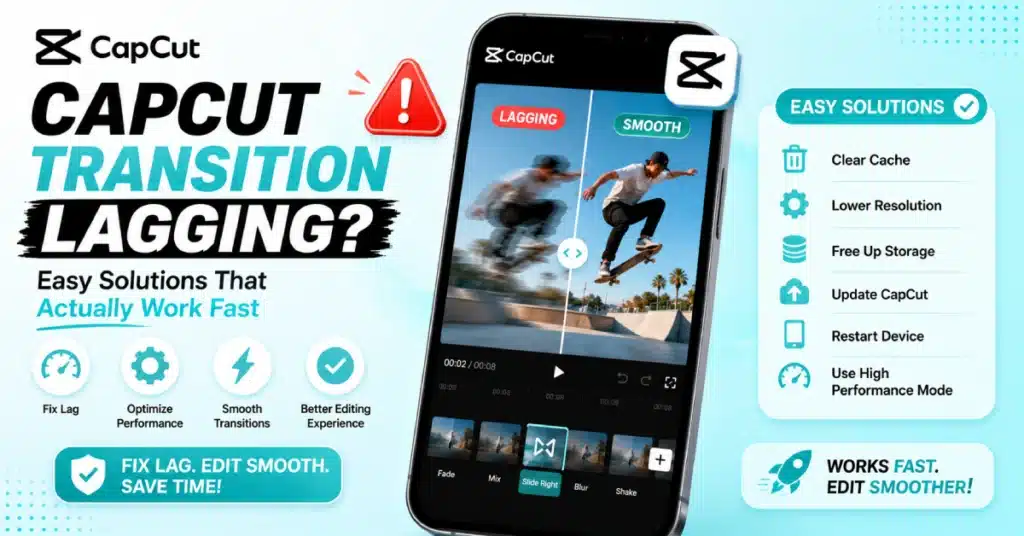
CapCut Transition Lagging – Easy Solutions 2026 That Actually Work Fast
A lot of users start editing on CapCut video editor because it feels beginner friendly in the beginning. Drag clips, add music, throw in a transition, and suddenly the video starts looking professional. Then the lag shows up.
One transition loads fine. Add a few more and everything slows down. Preview freezes. Audio skips. Clips stutter. Sometimes the transition itself looks broken even though the export settings seem okay. That’s usually when users start searching for CapCut Transition Lagging fixes because the app becomes almost impossible to use comfortably.
Honestly, this problem happens on both phones and computers. Some users think only old devices struggle, but even newer phones can start choking when projects become heavy. A lot of creators don’t realize how much processing power transitions actually use, especially cinematic effects with blur, zoom, shakes, motion graphics, and AI-based rendering.
That’s probably why some projects feel smooth one day and terrible the next. The good news is most lag issues are fixable without deleting the entire project.
Why Does CapCut Start Lagging During Transitions?
In most cases, transitions lag because the app is trying to render too much at once. Every transition requires processing between clips. Basic fades are light. Cinematic zooms, glitches, motion blur, and layered effects are much heavier.
Now combine those with:
- 4K footage
- overlays
- subtitles
- filters
- music effects
- auto captions
That’s a lot for a mobile device.
At first, many users blame the app immediately. Sometimes the app really does have bugs. Still, lag usually comes from overloaded hardware or poor optimization settings.
A lot of users editing TikTok or Reels content don’t notice problems until timelines become longer than one minute. Short edits stay manageable. Bigger projects push the device harder.
Some creators using CapCut APK versions downloaded from third-party websites experience even more instability because unofficial builds aren’t always optimized properly.
That’s where things start getting messy.
Storage Space Impacts Performance More Than Expected
People rarely connect storage problems with video lag. But CapCut constantly creates temporary rendering files while editing. If your phone storage is almost full, the app struggles to process transitions smoothly.
Honestly, this is one of the biggest hidden reasons behind stuttering previews.
Here’s a rough idea:
| Available Storage | Editing Experience |
| Under 2GB | Frequent freezing |
| 5GB Free | Moderate performance |
| 10GB+ Free | Much smoother editing |
When storage fills up, cache systems become unstable. Preview rendering starts failing randomly.
A lot of creators save hundreds of old exports without realizing those files quietly consume massive space.
Deleting unnecessary videos often improves transition performance immediately.
Heavy Effects Can Overload the Timeline
Not all transitions are equal. Simple cuts and fades barely affect playback. Cinematic transitions are different. Some use layered animations, blur calculations, frame interpolation, and artificial motion effects simultaneously.
That puts serious pressure on the device. For many users, lag becomes noticeable after stacking:
- transitions
- filters
- overlays
- camera shake
- sharpen effects
- beauty adjustments
At the same time.
People using CapCut Pro often notice this more because premium transitions contain more advanced rendering effects compared to free presets.
The quality looks better, sure. But devices work harder to process them.
Clearing Cache Actually Helps?
It sounds basic, but yes. CapCut stores temporary files aggressively while editing projects. Over time, those files pile up and begin affecting performance. A lot of users skip this completely.
To clear cache:
- Open CapCut
- Go to settings
- Find storage or cache section
- Clear temporary files
- Restart the app
That alone fixes lag for some people. Not everyone notices immediate improvements though. If the project itself is extremely heavy, cache clearing only helps partially.
Still worth trying. Users experimenting with CapCut Pro APK installations sometimes report corrupted cache behavior more frequently than official app users.
Why Older Phones Struggle More?
Video editing is demanding. Even if the app technically installs on older phones, rendering advanced transitions requires decent RAM, GPU power, and cooling performance.
Phones with:
- 2GB RAM
- outdated processors
- weak GPUs
usually struggle badly with cinematic editing. That’s probably why some creators experience freezing only after adding transitions while trimming clips remains smooth.
The device hits its processing limit. For regular editing, phones with at least 6GB RAM perform much better.
Lowering Preview Quality Makes a Big Difference
This fix helps more than most users expect. CapCut previews videos in real time while editing. High preview quality increases processing pressure dramatically.
Reducing preview quality allows smoother playback because the app temporarily lowers rendering demand. Most experienced editors already do this automatically.
Try:
- lowering playback resolution
- disabling HDR previews
- hiding unused layers
- turning off effects temporarily
Then export in full quality later.
Simple.
Some creators using CapCut Premium tools forget that AI-based features and cinematic effects can overwhelm preview rendering even on decent devices.
Restarting the Device Sometimes Fixes Everything
Honestly, yes. Long editing sessions consume memory gradually. After an hour or two, background processes pile up, RAM usage increases, and performance drops. A restart clears temporary memory overload.
Quick fix steps:
- Save the project
- Close CapCut completely
- Restart the device
- Reopen the project
For many users, transitions suddenly play smoother afterward. Simple solutions sometimes work because the issue isn’t the project itself. It’s accumulated memory pressure.
Outdated Versions Can Cause Rendering Bugs
Some lag issues happen after system updates. Developers constantly patch rendering optimizations, GPU compatibility, and transition behavior. Running older app versions occasionally creates instability with newer operating systems.
At the same time, new updates can introduce bugs too. That’s why some users intentionally install CapCut Old Version builds when newer releases feel unstable. It may not matter for casual editing. Regular creators notice these differences immediately though.
Especially during exports.
Is CapCut Better on Computer?
Usually yes. Editing with CapCut for PC generally feels smoother because desktop hardware handles rendering better than mobile phones.
Laptops and desktops typically have:
- stronger processors
- better cooling
- larger RAM capacity
- improved GPU performance
That matters during transition rendering. Still, weak laptops can lag too. Integrated graphics and overheating reduce editing performance quickly, especially with 4K timelines. Closing unnecessary apps before editing helps a lot.
Chrome tabs alone can eat ridiculous amounts of memory.
iPhone Users Still Experience Transition Lag?
Definitely. People assume Apple devices never struggle. That’s not really true. CapCut for iOS does a job but it can be hard on older iPhones when you have long timelines and a lot of transitions.
Battery health affects editing performance more than many people realize. iPhones can sometimes reduce processing speed once battery degradation becomes severe.
That’s probably why some users notice lag months later despite previously smooth editing experiences.
Mac Editing Feels Smoother but Not Perfect
Creators using CapCut for Mac usually get better rendering stability than mobile editors.
Especially on newer Apple Silicon systems.
Still, lag can happen if:
- storage becomes full
- projects become huge
- too many apps run simultaneously
- thermal throttling starts
Video editing pushes machines hard. Even expensive computers slow down eventually during complex timelines.
That part surprises people sometimes.
Should You Download Modded Versions?
A lot of users search for unlocked premium tools instead of paying subscriptions. That’s where unofficial modified apps become popular.
Still, CapCut Mod APK versions come with risks.
Some work temporarily. Others introduce:
- crashing
- export failures
- missing assets
- broken transitions
- rendering instability
Security concerns matter too.
Modified apps aren’t always safe.
Honestly, transition lag sometimes becomes worse because unofficial builds remove optimization systems from official releases.
Downloading Clean Installations Helps?
Corrupted installations create weird issues. If transitions suddenly start lagging after updates or crashes, reinstalling the app sometimes fixes everything immediately.
Safe reinstall process:
- Backup projects first
- Remove CapCut completely
- Restart the device
- Install fresh version
- Reopen projects
Users searching online for CapCut APK Download or CapCut Pro APK Download files should be careful though. Fake packages are extremely common now.
Some contain malware disguised as editing tools.
Export Settings Can Cause Stuttering Too
Sometimes previews look smooth but exported videos lag afterward. In many situations, that means the export settings are pushing the playback device too hard.
Recommended settings for most creators:
| Setting | Suggested Value |
| Resolution | 1080p |
| Frame Rate | 30fps |
| Codec | H.264 |
| Bitrate | Medium-High |
Exporting massive 4K 60fps files isn’t always necessary for TikTok, Instagram, or Shorts anyway. Huge exports increase rendering load dramatically.
Background Apps Quietly Destroy Performance
A lot of users edit while:
- streaming music
- downloading files
- running games
- syncing cloud storage
- opening dozens of browser tabs
All of that consumes RAM and CPU resources. Then transitions begin freezing. Closing unnecessary apps before editing frees up memory instantly. That’s one of the easiest CapCut fixes people overlook.
CapCut Pro Errors and Fixing Problems?
Some premium users report rendering issues specifically tied to cloud assets and advanced effects. CapCut Pro errors occasionally happen after updates, especially with AI-powered tools.
Common fixes include:
- relogging into accounts
- clearing plugin cache
- reinstalling transition assets
- syncing cloud projects again
CapCut Pro errors and fixing methods vary depending on device type and operating system compatibility. That’s why one creator may experience perfect playback while another gets nonstop lag using identical effects.
For more details on CapCut Pro errors and fixing read:
CapCut Not Working? 10 Easy Fixes That Actually Work (2026 Guide)
Why Long Projects Lag More?
Timeline length matters. Short edits usually remain manageable because fewer assets need simultaneous rendering. Once projects become several minutes long, memory usage increases rapidly.
This affects:
- transition loading
- playback speed
- audio sync
- export stability
For regular creators, splitting giant projects into smaller sections often improves editing performance dramatically. Not everyone wants to do that though.
Internet Speed Usually Isn’t the Main Problem
A lot of people blame Wi-Fi first. But transition lag mostly depends on local hardware performance, not internet connection.
Internet only matters for:
- downloading assets
- syncing projects
- loading cloud templates
Offline rendering still relies on your device’s power. That’s why lag can happen even with perfect internet speed.
Final Thoughts on CapCut Transition Lagging
Devices can experience CapCut Transition Lagging when rendering tasks, heavy effects, large timelines, or storage limitations start overwhelming system performance. Most users see better results after clearing cache, lowering preview quality, closing background apps, and reducing layered effects.
Still, weaker devices naturally struggle more once projects become complex. That part honestly can’t always be fixed through settings alone. For casual editing, simple optimization steps usually solve the issue. Creators who deal with transitions 4K footage and advanced effects will probably notice that they need better computers for smoother editing.
Frequently Asked Questions
Why do CapCut transitions freeze during preview?
CapCut transition lag or freezing during preview is commonly caused by hardware limitations or project complexity. High quality videos, advanced effects, and background processes can reduce performance, making transitions appear stuck until rendering catches up.
Does clearing cache improve lag?
Yes, clearing the cache often helps with problems because it makes the temporary storage of CapCut fresh again. This can make CapCut work faster, have glitches and make video previews smoother especially if you have been using CapCut a lot for big projects.
Is CapCut smoother on PC?
Yes, CapCut works on computers. They have memory, faster processors and better graphics. This helps with projects, lots of effects and high-definition videos. Computers can handle these things more easily than phones.
Do premium effects slow down editing?
Using premium effects can slow editing, especially in larger projects. Since these effects involve detailed graphics and motion processing, they can put extra load on your device and reduce overall editing speed.
Can overheating cause transition lag?
A hot device can cause transition lag because thermal throttling reduces system speed. This means CapCut gets fewer resources for rendering effects, making transitions appear choppy or less responsive during editing.