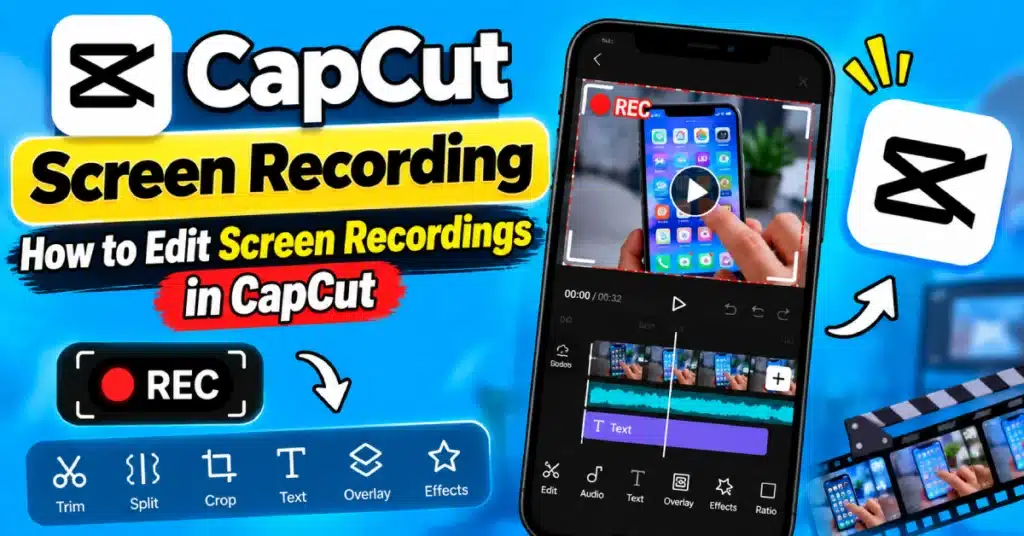
CapCut Screen Recording | How to Edit Screen Recordings in CapCut 2026
A screen recording usually needs a little cleanup before you post it. Maybe you started recording too early. Maybe you stopped for a few seconds because you forgot what to tap next. There could also be a notification sitting at the top of the screen that you really did not want in the video.
None of these things are a big problem. CapCut Mod makes it fairly easy to clean them up. I usually watch the recording once before touching the timeline. That gives me a better idea of what actually needs changing instead of cutting things randomly.
Start With the Recording
Open CapCut and add your screen recording to a new project. Let it play for a moment. You will probably notice things that look normal while recording but feel unnecessary when you watch them afterward. This is common during the few seconds. You could be on the home screen opening an app or simply waiting for something to load.
If nothing useful is happening, cut it. The same goes for the end. Once the important part of the tutorial is finished, there is usually no reason to leave another ten seconds of the screen sitting there.
Make the Timeline Less Messy
This is where most of the actual work happens. Move through the recording and stop whenever something feels too long. Use the split option, remove the unwanted section, and continue watching.
You do not have to cut every tiny pause. A short pause can make a tutorial feel natural. The problem is the long pause where the viewer is staring at the same screen and wondering if something is supposed to happen.
Mistakes are worth removing too. If you tapped the wrong setting and had to go back, there is little benefit in making someone else watch that mistake unless the mistake itself is part of your explanation.
Make Small Things Easier to See
Screen recordings have one annoying problem: everything can look tiny. A setting that was obvious on your phone may be difficult to spot when the finished video is playing on another person’s screen.
When that happens, zoom in. Pick your clip, make it bigger and move it so the main part is easier to see. Keep the close-up enough for people to understand it then go back to the regular picture.
You do not need to zoom constantly. In fact, doing it too often can make the video feel restless. One well placed zoom is usually more useful than five unnecessary ones.
Put Words Where They Help
Sometimes the viewer can see the button but still does not know what they are supposed to do. A small text label can solve that.
For example:
Open Settings
Tap Account
Choose Privacy
That is enough.
There is no need to cover half the screen with instructions. The recording is already showing the action, so your text should support it rather than repeat everything in a long sentence.
The CapCut Pro app gives you more text and editing options, but simple fonts and good placement are usually all a screen tutorial needs.
Point Out the Important Part
A quick arrow or circle can save a lot of explaining. Let’s say you are showing someone where to find a particular option. Put a small arrow beside it. Leave it there for a second or two, then let it disappear.
This is especially handy when several buttons look similar. I would avoid keeping arrows, circles, and stickers on screen all the time. After some time they simply disappear into the background and people stop looking at them.
Only add them when they help viewers notice a specific part.
What About Notifications?
Check for them. A WhatsApp message, email notification, incoming call, or private account detail can appear in a screen recording without you noticing while making it.
If you catch one, cut that moment out when possible. For information that cannot simply be removed, place an overlay over it. This matters even more if you are recording a banking app, email account, social media account, or anything else containing private details.
Before uploading, watch the video from beginning to end. Do not rely only on the parts you remember recording.
A Voice Over Can Change the Whole Video
A silent screen recording can work, but a short explanation often makes it much easier to follow. You can record your voice directly in CapCut while the screen recording plays.
You do not need to talk constantly. If viewers can see where you tap, there is no reason to explain each tap. Use the explanation for parts that are less obvious.
If a setting is not easy to find, explain its location and why you are opening the menu. This gives viewers guidance they would not get from watching the taps alone.
Keep background music low if you use it. A tutorial should not feel like a music video.
Do Not Over Edit It
This is probably the easiest mistake to make. You discover transitions, animations, effects, stickers, filters, and all sorts of other options inside CapCut. It can be tempting to use them.
But a screen recording already has plenty happening on screen. A simple cut is often better than a transition. A clear zoom is better than a dramatic animation. A readable label is better than a screen full of decorations.
The CapCut video editor has enough tools to make a simple recording look polished without making it complicated.
Watch It Once Before Exporting
When you think the edit is finished, watch the whole thing. Not just the first minute. Look for places where the video jumps too quickly. Check that text stays on screen long enough to read. Make sure a zoom does not accidentally hide something important.
Also listen to the voice over if you added one. Sometimes the recording sounds fine while editing but feels too quiet once everything is played together.
Fix those small problems before exporting.
Final Thoughts
Good CapCut screen recording edits are usually not about adding more. They are about taking away the parts that get in the viewer’s way. Remove the waiting, hide anything private, bring important buttons closer, and explain the parts that are not obvious. After that, stop editing.
A clean screen recording can be much easier to watch than one filled with effects. Once you get comfortable with CapCut Screen Recording edits, you will probably find yourself making these changes almost automatically.
Frequently Asked Questions
Can CapCut edit phone screen recordings?
Yes, screen recordings can be cut, split, cropped and zoomed. You can also add text overlays, voice narration and more.
How do I remove mistakes from a screen recording?
Split the recording around the mistake, select that section, and delete it. The remaining clips can then be joined together.
Can I zoom into one part of the screen?
Yes. Resize and reposition the clip during that section so a particular button or area becomes easier to see.
Can I add my voice to a screen recording?
Yes. CapCut includes a voice recording option that lets you add narration over the screen recording.
How can I hide private information?
You can remove the section containing it or cover the information with an overlay. Always review the full video before publishing.
Do I need CapCut Pro for screen recording edits?
No. The basic tools needed to clean up and explain a screen recording are available without CapCut Pro.
This version intentionally avoids the “first, next, then, finally” structure and repetitive instructional phrasing used in the previous draft.