How to Use CapCut AutoCut for Faster Edits in 2026
Have you ever looked through 30 clips on your phone? Not known which ones to keep? Reviewing all the clips individually can be a task. You then must organize the clips, choose music, add transitions and connect everything smoothly.
CapCut AutoCut takes a shortcut. You choose the footage. CapCut puts together a first version for you. It can add music, transitions, effects, and timing based on the style you pick.
The result will not always be perfect. That is not really the point. It gives you something to work from instead of an empty timeline.
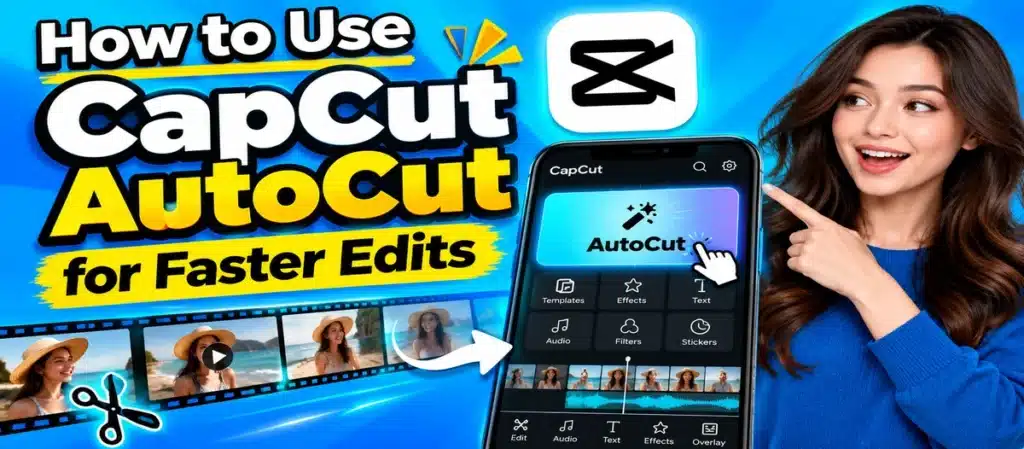
Where to Find AutoCut?
Open CapCut and look around the main creation area for AutoCut. The name and location can change after app updates, so do not worry if your screen looks different from someone else’s tutorial.
Once you open it, you can start choosing your media.
Pick the Clips You Actually Like
This part is worth doing properly. You do not have to use every video that you recorded. If you filmed the shot five times, choose the video that looks the best.
For a travel video I suggest you pick an airport clip, a road scene, some food shots and the main destination. For a birthday video I suggest you want photos and short clips that show the people and special moments.
AutoCut can arrange the material, but it cannot know which memory matters most to you.
Let AutoCut Make a Draft
Once your photos and clips are selected, continue with the AutoCut process. CapCut Premium creates a video using the available editing style. Depending on your version, it may sync cuts with music and add transitions or effects.
Now watch the preview. Do not stop after the first few seconds. Sometimes the beginning looks great and the middle feels rushed. You will only notice that by watching the whole thing.
You Can Change the Result
One of the useful things about AutoCut is that you are not stuck with its first attempt. If it picks a clip you do not like, replace it. If a section feels too busy, remove something. If the text does not make sense for your video, change it.
Think of the first AutoCut result as a rough edit. You are still the person making the video.
When AutoCut Makes Sense?
AutoCut is a good fit for videos where the clips can be shown one after another without needing a lot of explanation.
It can work nicely for:
- Holiday and travel clips
- Birthday memories
- Family videos
- Food content
- Shopping videos
- Daily vlogs
- Photo collections
- Simple Instagram Reels
A talking tutorial is different. If someone is explaining a subject, you may want to decide exactly where each cut happens. In that case, the normal timeline in the CapCut video editor gives you more control.
Check the Crop Before Exporting
Your original videos may not all have the same shape. One might be vertical. Another could be horizontal. AutoCut adjusts the pictures to fit the project. This can sometimes cut off part of the image.
For a Reel, video or YouTube Short, always check the vertical 9:16 frame before editing. I know it saves headaches. Look at people’s faces first. Then check any product, sign, screen, or other detail that needs to stay visible.
A few seconds of checking can prevent an annoying surprise after uploading.
What Can AutoCut Add?
The exact options depend on the current version and the style you select, but an AutoCut project may include:
| Part of the Edit | Possible AutoCut Action |
| Your clips | Arranges selected media |
| Music | Adds suitable audio |
| Timing | Changes clip duration |
| Transitions | Connects scenes |
| Effects | Applies visual changes |
| Text | Adds preset text elements |
| Style | Gives the video a certain look |
Do not expect every project to contain all of these.
What About CapCut Pro?
You do not necessarily need CapCut Pro just to make an AutoCut video. CapCut has free editing features, while some templates, effects, and other resources are restricted to premium users. This can change as the app receives new updates.
With an active CapCut Pro subscription, you can look through your account to see the available resources. Some websites may also offer a CapCut Pro APK that claims to include unlocked premium features. Those versions are unofficial and can be modified. For a safer editing setup, use the official CapCut application.
A Small Trick for Better Results
Do not give AutoCut random footage and expect a perfect story. Think about the order before you select your clips. For a travel video begin with the journey, show the destination next, highlight the moments and end on a memorable shot.
You do not need to arrange everything manually. Just choose footage that belongs to the same story. The better the material, the less fixing you usually need afterward.
Before You Export
Give the finished video one final watch. Check the music level. Read the text. Look for strange cuts. Make sure a face has not been cropped out. If a clip feels unnecessary, remove it.
Also check the export quality and frame size before saving the video. These small details may look tiny. They can turn a quick draft into a video that you are happy to post.
Final Thoughts
CapCut AutoCut can help you create a video from photos and clips without spending hours on your first editing session. It does the initial arranging for you, then gives you a project that you can change.
The best approach may be to let AutoCut do the repetitive part and then make the final editing choices yourself. You get the speed of automatic editing without handing over the whole creative process.
Frequently Asked Questions
What does CapCut AutoCut do?
AutoCut creates a video from selected photos and clips by arranging them with available music, transitions, effects, timing, and preset styles.
Where can I find AutoCut in CapCut?
Look in the main creation area of CapCut. The location and name can change when the app receives updates.
Can I change an AutoCut video?
Yes. After the automatic edit is created, you can make available changes to clips, text, music, timing, and other elements.
Can AutoCut make a Reel?
Yes. It can be useful for creating short vertical videos, provided the selected template or project supports the format you need.
Can I use photos with AutoCut?
Yes. Photos can be combined with video clips, making AutoCut useful for slideshows, memories, travel posts, and similar content.
Is CapCut AutoCut free?
AutoCut access and related resources can vary. Some features may be free, while certain templates or premium resources can require paid access.