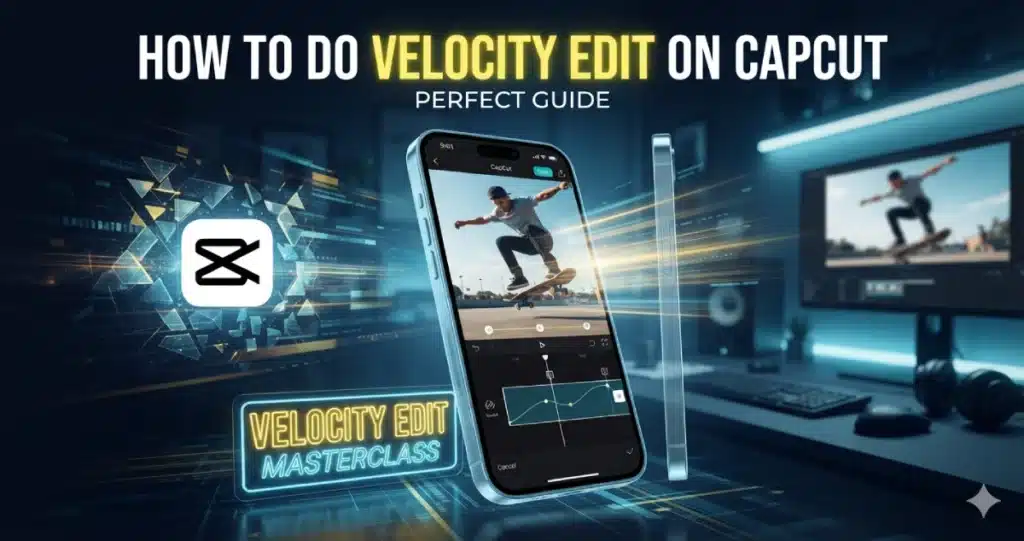
How to Do Velocity Edit on CapCut: Perfect Guide 2026
Introduction
Have you seen TikTok or Instagram videos where a clip suddenly speeds up, slows down, and then smoothly returns to normal speed? This editing style is called a velocity edit. It can make simple footage feel more energetic and help important moments match the beat of your music.
Learning how to do velocity edit on CapCut is easier than it looks. CapCut includes speed controls that let you change the pace of different parts of a clip. You can create smooth speed ramps without cutting your video into dozens of small pieces.
You can use velocity effects for travel videos, sports clips, dance edits, gaming videos, transitions, and short form content. Whether you use the free editor or CapCut Pro, understanding speed curves will give you much more control over the pace of your videos.
This guide covers velocity editing on Android, iPhone, PC, and Mac. You will also learn how to make smooth speed ramps, sync them with music, and fix common problems.
What Is a Velocity Edit in CapCut?
A velocity edit allows you to create speed changes within one video clip.You can play a video clip at speeds. For example you can play a video clip at speed then slow it down and then speed it up again. This is a cool way to make your video clip more interesting. The video clip can be played at slow speed or fast speed depending on what you want.
You can start the clip at a speed and then make the clip go faster as the person jumps. This makes the clip look really smooth and fast.When the main moment comes, slow the footage down for a bit. Once it’s over, let the video play normally again.
CapCut’s speed curve tools make this possible without manually changing every section.
| Speed Effect | What It Does |
| Normal Speed | Keeps one speed for the whole clip |
| Slow Motion | Slows the footage |
| Fast Motion | Speeds up the footage |
| Velocity Edit | Changes speed several times |
| Speed Ramp | Creates gradual speed changes |
| Freeze Frame | Completely stops one moment |
Velocity editing works best when the speed changes have a purpose rather than being added randomly.
Why Are Velocity Edits So Popular?
Velocity edits are popular because they make movement feel more dramatic. Changing the speed can make special moments stand out. It can draw attention to a jump, dance step, camera transition, product reveal or other important scenes.
A lot of creators use speed changes in their videos, Instagram Reels, YouTube Shorts, sports edits, car videos and travel content. When you combine the speed effects with the music beats it can make a normal video look really polished.
A good velocity edit should still be easy to watch. Changing speed every second can quickly become distracting.
How to Do Velocity Edit on CapCut on Android?
You need to begin by opening CapCut. Then you need to import the clip you want to make better. If your main device for editing is an Android phone you can look at our CapCut for Android page to get help that is just, for Android.
Select the video on your timeline and open the Speed controls. CapCut generally provides Normal and Curve options. Normal changes the speed of the entire selected clip, while Curve gives you more control over speed changes throughout the footage.
Choose Curve and select an available preset or create a custom curve. Adjust the speed points until the fast and slow sections appear where you want them.
Play the clip several times after making changes. Smooth velocity editing usually requires small timing adjustments.
What Is the CapCut Speed Curve?
The speed curve controls how quickly different parts of your clip play. Instead of applying one speed to everything, it lets you create several speed points within the same video.
Moving a point higher generally makes that part faster, while moving it lower makes it slower. The exact interface can differ between CapCut versions.
CapCut may also provide preset curves. These are useful when you are learning because they give you ready-made speed patterns. Custom curves provide more control when you want to match a specific movement or music beat.
How to Make a Custom Velocity Edit in CapCut?
Import your footage and select it on the timeline. Open Speed, choose Curve, and select the custom option when available.
You should see several adjustable points. Move these points to control how the speed changes throughout the clip. Increase the speed before an important moment, slow it down around the main action, and then gradually return toward normal speed.
Avoid extreme changes when you are learning. A smooth transition between speeds usually looks better than constantly jumping between very fast and very slow footage.
Preview your changes after every few adjustments instead of building the complete curve without watching it.
How to Do Velocity Edit on CapCut on iPhone?
Editing speed on iPhone follows a process similar to Android. First, add your video, select the clip, open Speed, and use the Curve controls for speed adjustments.
Pick a preset if you want a speed style.. Use the custom curve feature to adjust the timing and speed of your video more accurately.Move the speed points based on where the important action occurs.
If you regularly edit on an iPhone or iPad, our CapCut for iOS page provides more information about using CapCut on Apple mobile devices.
Since the mobile timeline is smaller, zoom into your project where possible. Accurate timing matters when you want a speed change to match a particular beat.
How to Make a Velocity Edit in CapCut on PC?
Desktop editing gives you more timeline space, which can make precise speed adjustments easier. If Windows is your main platform, our CapCut for PC page is a useful related resource.
Import your video and place it on the timeline. Select the clip and open the available speed controls. Use the curve or speed ramp tools available in your current desktop version to create changes throughout the footage.
Adjust the points while watching the preview. Try to make the speed increase and decrease around meaningful actions instead of placing changes at random points.
The larger preview also makes it easier to notice unwanted jumps or blurry slow motion sections.
How to Make a Velocity Edit in CapCut on Mac?
The Mac workflow is similar to the PC. Add your footage, select the clip, and open the speed controls. Choose a suitable speed curve or create your own if that option is available.
Our CapCut for Mac page can help readers who need more information about using the desktop editor on macOS.
While changing velocity, focus on how the complete clip feels from start to finish. A speed curve can appear correct during editing but may not look smooth in playback. Review the whole section a few times before applying effects or transitions.
How to Make Smooth Velocity Edits?
If you want to create motion you need to control the way your video changes speed. Sudden speed shifts can be good for some scenes.. Softer transitions make your video look more natural and professional. You need to control the speed changes in your video.
Start with a normal speed effect and smoothly raise the speed before the main action. A gradual increase creates better timing and adds more impact to the scene. Slow down around the moment you want viewers to notice, then smoothly increase or return to normal speed afterward.
The original recording also matters. Footage recorded at a higher frame rate can often provide more frames for slow motion, which may help certain slowed sections look smoother.
If your main goal is slow motion rather than changing speed several times, our slow motion effect on CapCut guide covers that technique separately.
How to Sync a Velocity Edit With Music?
Music can turn a basic velocity effect into a much stronger edit. Start by adding your chosen audio before making detailed speed changes.
Listen for strong beats or changes in the song. Position your important video moments near those beats, then adjust the velocity curve so speed changes happen around them.
For example, you might speed up the footage before a beat and slow it down exactly when the beat hits. This creates a clear connection between movement and sound.
Our guide on how to add music to CapCut explains how to add audio while avoiding common copyright problems.
How to Combine Velocity With Keyframes?
Velocity controls the speed of your footage, while keyframes can control movement and other supported visual properties. Combining both can create more dynamic edits.
For example, slow down a clip around an important moment and add a small zoom at the same time. The viewer’s attention naturally moves toward the subject.
Keep the zoom controlled. Extreme movement combined with extreme speed changes can make a video difficult to watch.
If you need help creating smoother movement, our how to make smooth keyframes in CapCut PC guide explains the keyframe process in more detail.
How to Use Velocity Edits for Transitions?
Speed ramps can help hide the point where one scene changes into another. Speed up the end of the first clip and connect it to movement at the beginning of the next clip.
This works especially well when both clips contain movement in a similar direction. Camera pans, walking shots, vehicle footage, and travel clips are good examples.
You can also combine velocity with masking or other transition techniques. Our guide on how to mask in CapCut can help if you want to build more creative scene changes.
Can You Make Velocity Edits With CapCut APK?
Velocity and speed curve tools can be available in Android versions of CapCut, although their exact location may change with updates.
If you use CapCut APK Download, select your video and check the Speed controls for Curve or similar options. When you use versions of something it may look a bit different from the newer versions and some tools and features might be missing.
It is better to focus on the features that’re available in the version you have installed. This is because you should not expect every tutorial page to have the layout as the one you are looking at.
Why Does My Velocity Edit Look Choppy?
Choppy velocity edits can happen when slow motion sections do not have enough frames or when speed changes are too extreme.
Try reducing the difference between your fastest and slowest points. A more gradual curve can make the transition easier to watch.
Your source footage matters too. If a clip was recorded with heavy camera shake, changing its speed can make that movement more noticeable. Our how to stabilize video in CapCut guide can help when shaky footage is causing problems.
Why Is My Velocity Edit Out of Sync With Music?
Speed changes affect the duration of your video. When you change the velocity curve, an action that previously matched a beat may move away from it.
Add your music early and make major speed adjustments before spending time on smaller effects. After changing the curve, check your important beats again and reposition or fine tune the clip as needed.
Always preview the edit with audio turned on before exporting.
How to Make Velocity Edits Look Better?
Start with footage that contains clear movement. Walking, jumping, turning, camera pans, sports action, and dance moves usually give you more opportunities for useful speed changes.
Do not make every part fast. The contrast between normal, fast, and slow sections creates the effect.
You can also add subtle zooms, transitions, text, or sound effects, but avoid covering the video with unnecessary effects. The speed ramp should remain easy to follow.
For a dramatic ending, you can combine velocity with the freeze frame in CapCut technique and hold the strongest moment before continuing.
Does Velocity Editing Reduce Video Quality?
Changing speed does not automatically mean your final export needs lower resolution. However, very slow sections can appear less smooth when the original footage does not contain enough frames.
Heavy scaling and poor export settings can also reduce visible quality. Start with good source footage and avoid unnecessary compression.
Your project is done now you need to select the resolution and frame rate before you export it. You can look at our guide on the CapCut export settings to make sure your videos look great on TikTok, YouTube, Instagram and other platforms.
Common Velocity Editing Mistakes
One common mistake is adding too many speed points. More points do not automatically create a better velocity edit. Start with a few meaningful changes and add more only when needed.
Another problem is using extreme speed differences. Moving suddenly from very fast footage to extremely slow footage can look rough unless the transition is intentional.
Do not forget about audio either. Velocity edits often look strongest when visual changes match the rhythm of the music. Finally, watch the entire edit before exporting rather than judging individual sections separately.
Is CapCut Pro Required for Velocity Edits?
The availability of specific speed curves, presets, and advanced tools can vary by CapCut version, platform, account, and region. Check your current editor to see which options are available before upgrading for a single feature.
Creators who regularly use advanced AI tools, effects, templates, cloud features, and other paid resources may find CapCut Premium useful for their wider editing workflow.
For additional CapCut versions, tutorials, and editing resources, readers can also explore CapCut Pro APK Download through our homepage.
Final Thoughts
Learning the CapCut velocity edit technique can change regular videos into eye-catching content with smooth speed effects.The main idea is simple. Change the speed at meaningful moments instead of keeping one speed throughout the entire clip.
Start with a basic speed curve and focus on smooth timing. Once you understand how fast and slow sections work together, try matching them with music, keyframes, transitions, or freeze frames.
Do not add speed changes just because you can. A few well placed adjustments usually look better than a complicated curve filled with unnecessary changes.
Frequently Asked Questions
How do I do a velocity edit on CapCut?
Import your video, select the clip, and open the Speed controls. Choose Curve and use a preset or custom curve to change speed at different points. Increase or decrease individual points based on the action in your footage, then preview the complete clip and fine tune the timing.
What is velocity editing in CapCut?
Velocity editing makes it possible to create smooth speed changes in one clip. You can increase the speed of one scene. Decrease the speed of another. You do not have to change the video. Many creators use velocity editing for music edits sports content, dance videos, transitions and social media shorts.
How do I make CapCut velocity edits smooth?
Avoid extreme speed changes when possible and create more gradual transitions between fast and slow sections. Use clear source footage and preview your speed curve several times. Slow motion can also look smoother when the original recording contains enough frames to support the reduced playback speed.
Can I sync a CapCut velocity edit with music?
Yes. Add your music and identify important beats before fine tuning your speed curve. Adjust the video so major movements and speed changes happen around those beats. Because velocity changes affect clip duration, check the synchronization again whenever you make a major adjustment to the curve.
Why is my CapCut velocity edit choppy?
Choppy results can come from extreme speed changes, low frame rate footage, motion blur, or shaky source video. Try making your speed curve more gradual and avoid slowing weak footage too much. Preview the video after each major adjustment to identify which section is creating the problem.
Can I make velocity edits on CapCut mobile and PC?
Yes. Speed adjustment and curve features are available across supported CapCut platforms, although the exact interface and available presets can vary. Android, iPhone, Windows, and Mac users should select their video and check the current speed controls to see which velocity options are available.