Convert Text to Speech in CapCut 2026 – Best Way to Create Natural Voiceovers
Introduction
Creating videos without using your own voice used to feel a bit limiting. Either you had to record audio (which not everyone enjoys), or rely on external tools that made things complicated. Now, there is an easy way to create voiceovers. CapCut Convert Text to Speech lets you type and convert text into speech right away. No need for recording tools. The audio comes out clear and ready in seconds.
Another great thing is its easy access. You can use it on mobile or CapCut for iPhone without any setup steps. Many beginners learn it fast, even with no editing skills. But some small tricks can change your voice result a lot, and we will look at them here.
What is CapCut Text to Speech Feature?
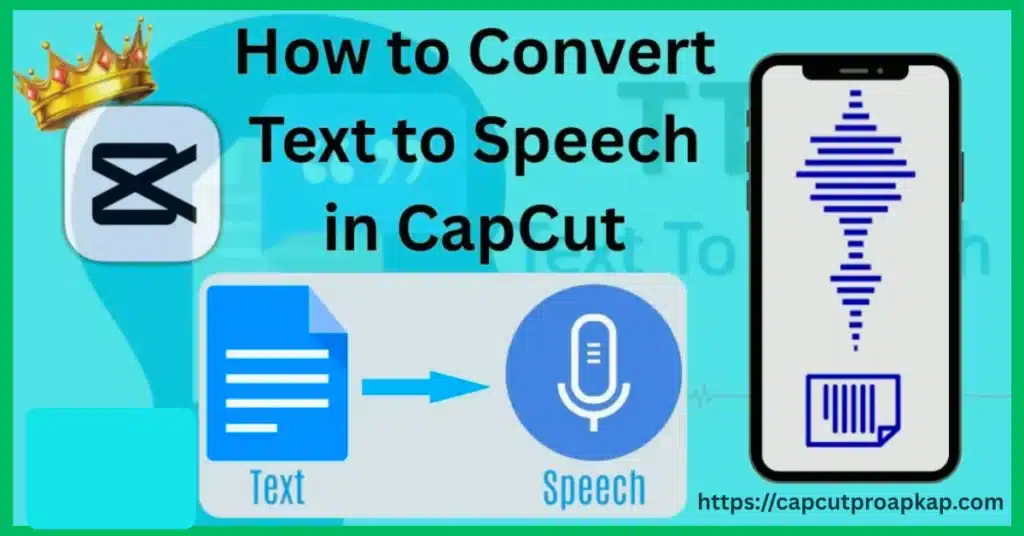
CapCut’s text-to-speech tool is built for one simple job. It changes written words into spoken sound. What makes it stand out is how easy it fits in editing. No app switching or file handling. Type your text, choose a voice, and it is done on your timeline.
From real use, it feels less like a “feature” and more like part of the editing flow. For example, when working on projects through CapCut for PC Download, the experience is pretty seamless. You can tweak text, regenerate audio, and adjust timing without breaking your workflow. That’s something standalone tools often struggle with.
Another thing—voices have improved a lot. They’re not perfect, but they’re definitely more natural than before. Some tones even carry emotion, which is surprising if you’ve used older tools.
Why this feature is popular among creators?
The main point is speed and ease. Recording voiceovers is not quick and needs time. Retakes, background noise, editing—it all adds up. With text-to-speech, you skip all that. Plus, many creators prefer staying off-mic, especially when making quick content for social platforms.
Benefits of Using Text to Speech in CapCut
There’s something really practical about not needing your own voice in every video. For many people, that alone is enough reason to use this feature. But beyond that, there are a few benefits that become obvious once you actually start using it regularly.
First, consistency. Recording your voice manually can result in sounds. This is because your mood or surroundings can change.. Text-to-speech always keeps the voice tone stable. That’s useful, especially if you’re creating a series of videos.
Second, flexibility makes a big difference. If you change one line, manual recording means doing it again. But here, you just edit the text and create new audio. Compared to a free text to speech converter, CapCut feels smooth because you stay in one place.
I noticed that beginners feel stress when they are not required to speak in front of other people. This is a deal for beginners. It removes that “performance” factor and lets them focus on visuals and storytelling instead.
Who should use this feature?
This works well for a wide range of users, but especially:
- People who don’t like recording their voice
- Short video creators
- Educational content makers
- Social media editors
If you fall into any of these groups, you’ll probably find it useful almost immediately.
Requirements Before You Start
Before you start, check small things. These small things are not hard to do. If you skip them you will be confused later on. Start with your app version. If you’re using something outdated like capcut old version apk download, chances are the feature either won’t show up or won’t work properly. Updates matter here because voice options keep improving with newer releases.
Next, think about your device. CapCut works on many devices, but results may differ. A slow device can delay audio creation and preview tasks. It is not an issue with the slow device, just something to note about the slow device.
Internet connection is another factor. You can use the app offline for tasks but making voices usually needs internet access. If your internet connection drops it may not work. This can be. Frustrating at the same time.
With CapCut Pro, you may notice more voice styles and useful features. Not essential, but definitely nice to have.
Supported devices and versions
CapCut currently supports:
- Android smartphones
- iOS devices
- Windows computers
- macOS systems like CapCut Mac
Users with low-end PCs often rely on Android Emulators. The Android Emulators may not run perfectly. The Android Emulators work in most cases.
How to Convert Text to Speech in CapCut
This is where things get practical. The method is easy, but details are important for good results. Do not go fast. Take time to learn each step.
Step-by-step guide
- Open CapCut and start a new project
Tap on “New Project.” You can add clips now or leave it blank for voice-first editing. - Add your text
Tap “Text,” then “Add Text.” Type your script the way you’d naturally say it. - Select the text layer
Once your text appears, tap on it to open editing options. - Choose “Text to Speech”
You’ll see this option in the toolbar. Tap it to move forward. - Pick a voice
Try a few. Some sound too robotic, others feel more natural. - Generate the audio
Tap generate and wait a few seconds. The voice will be created automatically. - Adjust placement
Move the audio clip to match your visuals properly. - Export your project
Once everything feels right, export your video.
That’s really it. The process doesn’t change much, even if you’re using a newer CapCut Pro Version.
How to Edit Voice After Converting Text to Speech?
After generating the voice, don’t just leave it as is. This is where a lot of people stop—but honestly, this is where quality improves.
Method to customize voice
- Tap on the generated audio
- Adjust speed slightly (try slower for natural feel)
- Modify pitch if needed
- Trim unnecessary silence
- Add background music for depth
In real use, even small tweaks can make the voice feel less artificial. For example, slowing it down just a bit often helps. Also, syncing the voice properly with visuals makes everything feel more intentional.
If you’ve used any text to speech converter before, you’ll probably notice CapCut gives you more control inside the editing timeline—which saves time in the long run.
Best Voice Styles Available in CapCut
Choosing a voice may look small, but it changes how your video feels a lot. CapCut gives many voice options. Some are calm, some are lively, and some sound expressive. But not every voice fits every video. For example, a playful voice may feel strange in a serious tutorial.
From what I’ve seen, most creators stick with simple, clear voices. They don’t distract from the content. That’s usually the goal.
Which voice should you choose?
When you feel unsure, use a voice first. After that, experiment with others. Try tones and listen carefully. See what suits your content style. There is no option only what fits your audience.
Common Problems and Fixes
There are times when things do not work right. You follow each step, but the voice may not play or may sound odd. Many users face this issue. Convert Text to Speech in CapCut can be affected by small mistakes, especially for new users.
One common issue is missing the feature entirely. This usually happens when someone installs CapCut APK Download from an unreliable source or uses an outdated build. In real use, I’ve noticed that unofficial versions often lack updated voice packs. Another issue is internet connectivity. Even though CapCut feels like an offline app, some voice processing actually depends on online services.
There’s also the “robot voice” problem. You type something simple, but the output sounds stiff or unnatural. To be honest, punctuation really matters. If my text doesn’t have any pauses the AI just reads it in one tone. The result is pretty boring.
Why text to speech not working?
Here are a few quick fixes you can try:
- Check your internet connection
Weak or unstable internet can stop voice generation completely. - Update the app
Older versions often don’t support new voice features. - Restart the app
Sounds basic, but it works surprisingly often. - Rewrite your text
Add punctuation to improve voice flow. - Try a different voice style
Some voices perform better than others depending on language.
From what I’ve seen, most problems are minor. You fix one small thing, and suddenly everything works fine again.
CapCut vs Other Text to Speech Tools
Now let’s be real for a second. CapCut is great, but it’s not the only option out there. There are plenty of tools like online text to speech converter platforms that offer advanced voices and customization. So, how does CapCut compare?
In simple terms, CapCut wins in convenience. Everything is in one place—editing, voice, effects. But standalone tools sometimes offer more realistic voices. For example, if you’ve ever used a speech to text converter online free, you probably noticed how specialized tools can outperform all-in-one apps in certain areas.
Still, for everyday creators, CapCut is more than enough.
Comparison table
| Feature | CapCut | Online Tools |
| Ease of Use | Very easy | Medium |
| Voice Quality | Good | Very good |
| Editing Integration | Built-in | Not included |
| Cost | Free + Pro | Mostly paid |
| Speed | Fast | Depends on tool |
Choose CapCut if you want fast and easy editing. For highly realistic voices, you may try other tools.
Tips to Make Text to Speech Sound Natural
This is where most people mess up. They follow all the steps correctly, but the result still feels… off. Not terrible, just not convincing. Small changes help AI voices sound more real. First, write in a natural speaking style. That’s probably the biggest tip. If your sentence sounds robotic when you read it out loud, it’ll sound even worse when generated. In real use, I always tweak the script before converting it. Even adding simple words like “well” or “you know” makes a difference.
Also, don’t ignore pacing. Many users just generate voice and leave it as is. But adjusting speed slightly—maybe 0.9x or 1.1x—can completely change how natural it feels. This is something I learned after testing multiple videos.
If you’ve used a convert text to speech free tool before, you might already know this—but CapCut gives better syncing options, which helps a lot.
Mistakes to avoid
Here are a few common mistakes:
- Writing long, complex sentences
- Skipping punctuation
- Using the same voice for every video
- Not adjusting speed or pitch
- Ignoring background music
If you avoid these then your articles will look clean and nice.
Conclusion
You can see for yourself Convert Text to Speech in CapCut is not hard at all. It is not just a click. It is about making the voice sound smooth and natural. Once you learn it, you may not record your voice again. From my use, it saves time. It is great for short clips and tutorials. You can work faster and still keep quality. Try it yourself. Test voices, change timing, and find your style. More practice will give better results.
FAQs
Can I use text to speech for free?
Yes, this feature is supported. CapCut offers it without cost, and it works for most users. But a few voice styles and tools may only be in CapCut Pro.
Is CapCut text to speech available on PC?
Yes CapCut also works on PC. If you install CapCut Desktop you will find that CapCut Desktop has features to CapCut. Some users choose to use CapCut Mac for CapCut because it gives them performance especially when they are working on longer videos with CapCut.
How many voices are available?
Voice options in CapCut change based on your app version and region. Updates bring voice styles over time. With the CapCut Pro you may get more voice choices than the free version.
Can I convert speech to text in CapCut?
Yes CapCut does speech to text. It makes subtitles automatically. This helps people with hearing problems. Keeps viewers interested.
Which is better CapCut or online tools?
Your needs matter most. CapCut is great for full editing in one place. Other tools may be more accurate. But for most creators, CapCut is more than enough.