How to Make Video Speed in CapCut Online? – Powerful 2026 Tutorial
How to make video speed in CapCut Online is something a lot of creators ask about — and honestly, it’s one of those features that looks tricky at first but is actually pretty simple once you know where to tap. Speed control is huge for content creators. From emotional slow motion scenes to energetic speed up clips, CapCut Pro handles every style nicely.
My first time trying to speed up a clip was really confusing. Turns out I was missing one small step. That’s the kind of thing this guide is here to fix.
Here’s a quick look at what speed editing lets you do:
- Speed up boring or long clips to keep viewers engaged
- Slow down action moments for dramatic effect
- Match video pacing to background music rhythm
- Create smooth speed ramp transitions for a cinematic feel
Let’s go through each platform and method so you can start using it right away.
How to Make Video Speed in CapCut Online Using the Web Version?
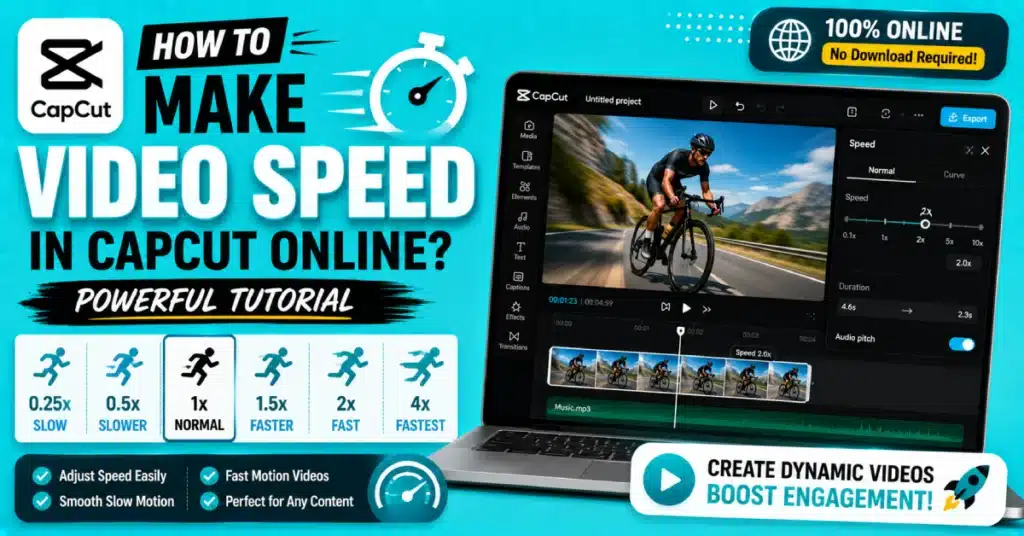
How to make video speed in CapCut Online through the browser is actually the easiest method for people who don’t want to install anything. CapCut has a free web editor at CapCut.com that works right in your browser.
Here’s how to do it:
- Go to CapCut.com and sign in to your account
- Click on Video Editor or Create New Project
- Upload the video clip you want to edit
- Click on the clip in the timeline to select it
- Look for the Speed option in the right side panel or top toolbar
- Choose Normal for basic speed change, or Curve for custom ramp effects
- Drag the slider — go left to slow down, right to speed up
- Preview the result and then export
That’s it. The web version is clean and fast. You don’t even need the app installed. For quick edits, this is honestly my go-to method.
One thing worth knowing — if your CapCut playback speed feels too fast during preview, that’s just the preview rendering. The exported file will be smooth.
How to Speed Up Video in CapCut Mobile?
Most people use CapCut on their phones. It’s the most downloaded version and the easiest to pick up. Here’s how to speed up video in CapCut mobile step by step:
- Open CapCut and start a new project
- Import your video from your gallery
- Tap the video clip on the timeline
- Scroll through the bottom menu and tap Speed
- You’ll see two tabs — Normal and Curve
- Under Normal, slide the speed bar to the right to go faster
- Under Curve, you can set custom speed points for ramp effects
- Hit the checkmark to confirm, then export
For slowing down, same process — just drag the slider left instead. That covers how to slow down a video on CapCut mobile too, which a lot of people ask about separately but it’s the same menu.
The Curve mode is where CapCut gets really creative. A great cinematic effect comes from the clip starting the clip speeding up in the middle and the clip slowing down again before the clip ends.
How to Speed Up Video in CapCut iPhone and iPad?
iPhone and iPad users sometimes ask separately because the interface feels a little different on iOS. But the steps for how to speed up video in CapCut iphone are nearly the same as Android.
- The first thing you do is CapCut on your iPhone or iPad.
- Pressing the plus icon will help you launch a project.
- Select your video from your camera roll
- Tap the clip in the timeline
- Look for Speed in the lower menu bar
- Tap Normal to set a fixed speed or Curve for custom control
- Adjust the slider or speed points
- Tap the checkmark and export when you’re happy
For how to speed up video in CapCut ipad, it’s the exact same path. The iPad just shows a larger interface, which makes dragging the curve points a bit easier actually.
You can get the app through CapCut iOS Download if you haven’t already set it up on your Apple device.
How to Speed Up Video in CapCut PC and Desktop?
Desktop users have a slightly different experience. Here’s how to speed up video in CapCut pc using the desktop app:
- Open CapCut on your computer
- Start a new project and import your video
- Drag the clip to the timeline
- Click on the clip to select it
- Look for the Speed panel on the right side of the screen
- Toggle between Normal and Curve speed modes
- Adjust the speed value — type a number or drag the slider
- Preview the clip and export when done
For how to increase video speed in CapCut pc specifically, just type a value higher than 1x in the speed box. Something like 2x or 4x works great for timelapses or montage clips.
How to slow down a video in CapCut pc is just setting the value below 1x. Like 0.5x gives you half speed. 0.2x is very slow motion. Smaller numbers result in slower video speed.
Anytime you want you can download CapCut for PC for free on your Windows PC or your Mac computer CapCut, for PC is always free. The desktop version also handles bigger files faster than mobile.
Normal Speed vs Curve Speed — What’s the Difference
A lot of users just use Normal speed and don’t explore Curve mode. But honestly, Curve is where the magic is. Here’s a quick comparison:
| Feature | Normal Speed | Curve Speed |
| Speed Type | Fixed throughout the clip | Varies at different points |
| Best For | Simple speed change | Cinematic ramp effects |
| Skill Level | Beginner | Intermediate |
| Presets Available | No | Yes (Hero, Bullet, Jump Cut, etc.) |
| Manual Control | Slider only | Drag custom speed points |
If you’re just starting out, use Normal. Once you get comfortable, switch to Curve for more creative control.
How to Increase Speed of a Video in CapCut Using Curve Mode?
The Curve mode deserves its own little section because it’s so useful. How to increase speed of a video in CapCut using Curve:
- Select your clip and tap Speed
- Switch to the Curve tab
- You’ll see preset options like Montage, Hero, Bullet Time, Flash In, Flash Out, Jump Cut
- Tap any preset to apply it — it adds speed ramp points automatically
- You can also tap Custom and drag the dots manually
- Higher dot position means faster speedClose background apps on your phone or PC
- , lower means slower
- Use this to create smooth speed transitions within a single clip
This is how to video speed fast in CapCut in a more creative and professional way. Lots of viral Reels and TikToks use this exact technique.
You can find even more editing tips on the Blog — it covers many CapCut features in detail.
CapCut Playback Speed Too Fast — How to Fix It?
Some users notice that CapCut playback speed too fast during preview in the editor. This is usually not a real problem with the export — it’s just the preview player struggling to render in real time.
Here’s what helps:
- For video playback go to settings. Make the preview video quality 480p.
- Split the clip and preview smaller sections separately
- Clear the CapCut cache from your app settings
If the actual exported video plays too fast, then the speed setting was too high. Go back, reduce the speed value, and re-export.
For CapCut for Android users specifically, clearing the cache helps a lot with playback issues on mid-range phones.
How to Make Video Speed in CapCut Online? — Bluray Quality Tips
Some users search for how to make video speed in CapCut online bluray quality — meaning they want high resolution output even after changing speed. Here’s how to keep quality sharp:
- Always use the original high resolution video as your source
- When you export your video try to use the resolution as the original video do not go lower.
- For the video quality you should export it in 1080p or 4K.. Your original video has to support it.
- If you do not want a video make sure the frame rate matches your source clip. This is usually 30 frames per 60 frames per second.
- For slow motion below 0.5x, use a 60fps source video for best results
CapCut handles quality well as long as you give it good source footage. The speed change itself doesn’t reduce quality — just make sure export settings are right.
CapCut Premium is useful for creators who need higher export quality and clean watermark free videos.
Speed Tips for CapCut on Mac
Mac users sometimes wonder if the speed feature works differently. It doesn’t — it’s the same as PC. But here’s what helps on Mac:
- Use Download CapCut for Mac to get the native Mac version
- The keyboard shortcut workflow is faster on Mac for timeline navigation
- If you’re on an M1 or M2 Mac, rendering speed changes is noticeably faster
- For slow motion on Mac, 60fps source files work best
How to increase speed of a video in CapCut on Mac is the same steps as PC — select clip, open Speed panel, adjust the value, export.
What If Speed Option Is Not Showing?
A few users report that the speed option doesn’t appear. This usually happens because:
- The clip is not selected — tap or click the clip first
- You’re on an older app version that has a different UI
- The clip is a sticker or text layer, not a video clip
Try updating the app. If you want to try an older interface, CapCut Old Version lets you download earlier builds where the menu layout was different.
Also worth checking — make sure you’re editing the main video track and not an overlay track. Speed controls only show for the main video clips.
Quick Speed Reference Guide
| Speed Value | Effect | Best Use Case |
| 0.1x | Extreme slow motion | Water drops, dramatic moments |
| 0.5x | Half speed | Sports highlights, action shots |
| 1x | Normal speed | Default, no change |
| 2x | Double speed | Vlogs, long clips |
| 4x | Quad speed | Timelapses, transitions |
| 10x+ | Very fast | Hyperlapse, background clips |
Keep this table in mind when choosing your speed. It saves a lot of trial and error.
For a cleaner workflow and more creative options, CapCut Pro APK offers useful premium features.
You can check what’s new in CapCut by visiting their website. They have all the features and updates.
Conclusion
How to make video speed in CapCut Online is really not complicated once you know where to look. Whether you’re on your phone, browser, or desktop — the Speed tool is right there waiting for you. Start with Normal mode to get comfortable, then explore Curve mode for those smooth, professional-looking ramps.
Go try it on your next clip right now. You’ll be surprised how much better your videos feel with the right speed control applied.
Download the version of CapCut today and you will be able to edit videos with all the features you need and have powerful tools to make your videos great.
Frequently Asked Questions
Can I change video speed in CapCut without losing quality?
Yes, video quality stays the same in CapCut when changing speed. Export at the resolution. A 60fps video helps for slow motion.
What is the maximum speed I can set in CapCut?
CapCut allows speed up to 100x in Normal mode for extreme fast forward effects.You can slow a clip down to 0.1x. With Curve mode, different parts of the same video can have different speed settings.
Why does my video look choppy in slow motion on CapCut?
When I record video at 30 frames per second or lower the slow motion can look bad. Using 60 frames per 120 frames per second video makes it look much cleaner. If I need to, CapCut can fill in the missing frames automatically.
Can I use speed ramp effects on CapCut for free?
Yes, a basic speed ramp with Curve mode is available for free in CapCut. Some preset ramp effects may require a Pro account. But the manual Curve mode where you drag speed points yourself is free on all platforms including the web version and mobile app.
Does changing video speed affect the audio in CapCut?
Yes when a clip is playing fast the sound is higher too. When you slow it down, it sounds lower and stretched. CapCut has an option to keep the original pitch even after speed change. Look for the pitch correction or audio settings next to the speed panel.
How do I make a smooth speed ramp in CapCut like I see on Instagram Reels?
Select Curve mode, then choose a preset like Hero or Bullet Time for a professional style effect. These presets create automatic smooth speed transitions. You can also use a Custom curve and place your speed points at natural motion peaks in your clip. Practice a few times and you’ll get the hang of it fast.