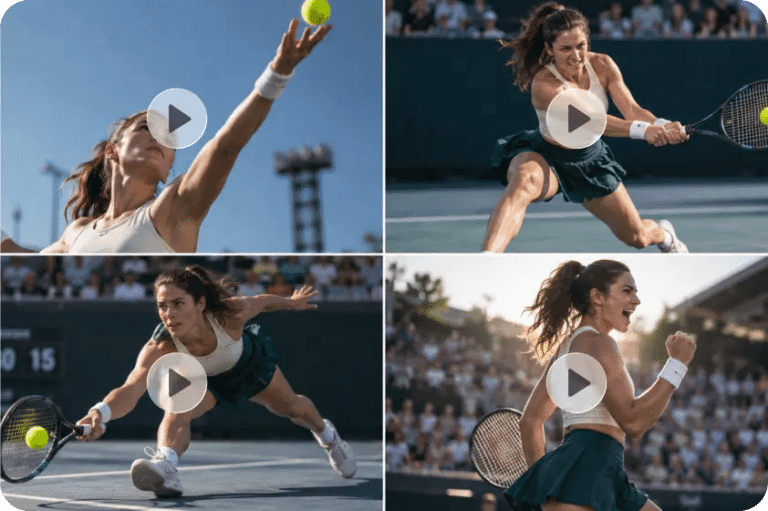
Make Pinterest Pins That Get Saved Using an AI Image Generator
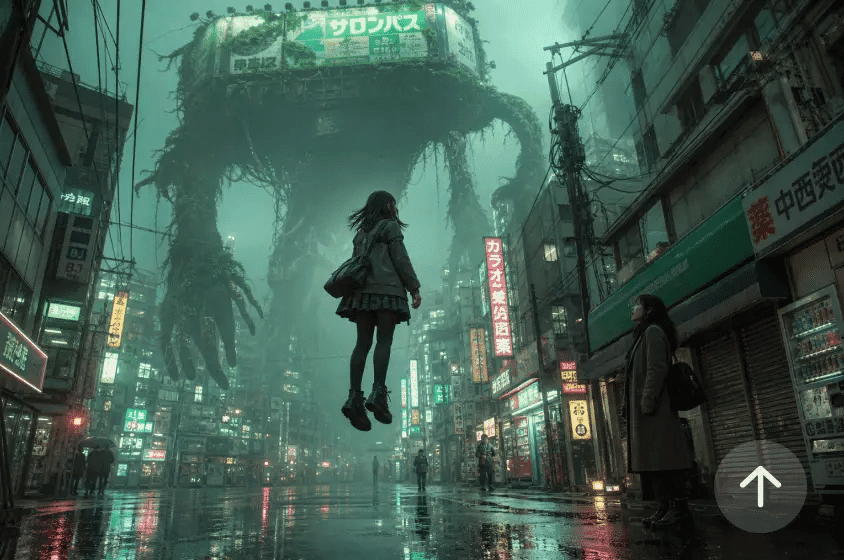
Pins are a way for people to find ideas, get inspired, and revisit useful information. Good designs have a clear purpose and convey it with a fast headline, appropriate graphics, and easy-to-read layouts. Dreamina AI provides a way to create and edit pin artwork, using text prompts and reference images. But good graphics don’t necessarily mean saves. People also determine whether a pin is worth revisiting based on whether there’s useful information, accurate messaging, and relevant destination pages.
Start With a Pin Idea That Offers a Clear Reason to Save
Each successful pin idea begins with a topic, question, or real-life solution. Think in terms of checklists, recipes, room inspiration, outfit ideas, and creative tutorials that cater to specific interests. With the AI Image generator, Dreamina AI can transform these concepts into visual ideas, allowing creators to experiment with various artistic avenues. Identify information viewers should receive before creating work of art. A clear promise aligns the headline, images, and destination page. Don’t use graphics that are vague and have little context or purpose. Make sure that the linked page provides the info or directions that the pin guarantees.
Build a Pinterest-Friendly Visual Hierarchy
A good visual hierarchy allows viewers to gain a sense of what a pin is about without having to read everything. Use a short headline, followed by one strong picture or drawing that sets the main point. Dreamina AI can handle various types of imagery, such as photography, illustration, and editorial compositions—separate important elements with contrasting colors, readable typography, and enough spacing between elements. Don’t over-decorate; don’t let decorations distract from the headline or main subject. A harmonious color scheme can link relevant pins in a line, but also let each pin design convey its own message.
How to Make Pinterest Pins That Get Saved Using an AI Image Generator in Dreamina?
Step 1: Write a Prompt for Your Pin Idea
- Sign up or log in to Dreamina first, so you can start designing your pin.
- Select the “Create” tab from the left menu, and then choose the “AI Image” option.
- Enter a detailed text prompt that describes how you want your Pinterest pin to look. Add details on image elements, theme, and concept, such as cozy decor or flat lays.
Step 2: Pick the Model and Build the Pin Layout
- Pick an image model from the options present at the bottom of the dialogue box.
- You can choose Seedream, GPT Image, or Nano Banana, depending on your preferred pin style.
- Provide a reference image to Dreamina so your pin design looks more precise and natural.
- Next, select a custom aspect ratio and resolution from the “Aspect ratio” and “Resolution” tabs. Choose a tall ratio in “Aspect ratio”, since vertical pins stand out in busy feeds.
- Use “Images to generate” to pick the count, and the “Dimensions” tab for custom sizes.
- To add text to your pin, you can use the “Draw text on image” tab.
- Finally, click the “Generate” tab to begin the creation process and get your pin drafts.
Step 3: Polish the Pin and Export It for Pinterest
- You will receive the required number of pin drafts, each with a different design twist. If you dislike the drafts, choose “Edit prompt” or “Regenerate” to refine the generated results.
- You can also upscale the generated image using the “Creative upscale” option for crisp pins.
- Try “Retouch” to correct, clean up, or enhance details of the selected image, if needed.
- Use “Remove” to clear anything from your image, or use “Expand” to extend the canvas.
- You can convert your newly created image into video content through the “Generate video” tab.
- Dreamina gives you complete freedom to edit your pin design exactly the way you like.
- Finally, click the “Download” tab at the top right of the interface to begin saving. It saves the pin image file on your local device, ready to upload to Pinterest.
Six Pinterest Pin Formats to Create With AI
- Step-by-Step Tutorial Pin: Show a process in a focused manner with clear visual stages and a headline identifying the skill or outcome.
- Checklist Pin: Give practical tips or planning points, not too much information in one graphic.
- Recipe Inspiration Pin: Share mouthwatering food images and a short title of the recipe and connect to the full list of ingredients and instructions.
- Home Decor Pin: Create a board that depicts a particular style, color scheme, or decorating idea with a descriptive headline.
- Outfit and Style Pin: Show a matching outfit, seasonal outfit, or color scheme with the correct description of the outfit.
- Creative Project Pin: Display craft ideas, drawing ideas, or completed DIY projects related to materials and instructions.
Write Better Prompts for Pinterest-Ready Artwork
By providing more detailed prompts, you enable Dreamina AI to better understand your creative direction and deliver more consistent results. Determine the focal point, the style, the predominant colors, the lighting, and the vertical composition. Indicate the position of the headline and the spaces that should be kept clear. For instance, a house decor tip may ask for a light space, warm neutral tones, and space above the furnishings. Select photo, illustrated, editorial, or collage-inspired treatments based on the subject. Create several first drafts, compare the merits of each, and look for the best direction rather than taking the first one.
Use Color, Typography, and Imagery to Improve Recognition
Select a colour scheme that complements the subject and provides adequate contrast between text and background. Use a single head and a few words to support it. Avoid placing text near important image details and the edges where it might get cut off in a crop. Dreamina AI can be used to consider other compositions and visual styles of related pin collections. Use colors and design conventions that are recognizable but don’t duplicate the same layout throughout. Before showing the finished art, always proofread text for spelling, factual accuracy, spacing, and legibility.
Make Pins Useful, Discoverable, and Consistent With Their Destination
The content behind the link of a pin should accurately represent the pin. Use descriptive titles and natural description text that explains the topic without too many repetitions of the keywords. Provide helpful details as needed, e.g., preparation, ingredients, decorating principles, planning details, etc. Be sure that each link is live and that the target of the link does what the headline suggests. Don’t use deceptive text, plagiarized art, or unauthorized images. While Dreamina AI can assist with creating unique visuals, the surrounding content should be of value and aligned with the artwork.
Review the Pin Before Publishing
Look at the completed pin at a smaller display size to make sure that the person is still identifiable. Review the image quality, cropping, headline accuracy, and spacing. Make sure the branding, photos, and reference materials will be appropriate for their purpose. Check designs for consistency, adding variety in topics and compositions. Once published, check saves and, over time, look for patterns that are useful. While these signals can help inform future enhancements, there is no specific design that will ensure better performance.
Conclusion
Effective Pinterest pins have a clear idea, readable headline, appropriate picture, and a proper vertical format. Dreamina AI assists creators in creating artwork, comparing visual instructions, and further improving compositions without the need to construct each image from scratch. Combine these features with accurate data, easy-to-use design, and destination pages. When viewers see each pin has a clear benefit, they have a good reason to save it for later.