CapCut Speed Curve Powerful Editing Made Easy for Smooth Creative Videos
Want some parts of your video to slow down and others to speed up? CapCut Speed Curve makes it simple to control the timing. You can adjust different sections instead of keeping one speed for the entire clip, making a normal recording feel more dynamic.
Speed changes are great for dance clips, gaming highlights, sports videos, travel footage and short edits where the music sets the pace.
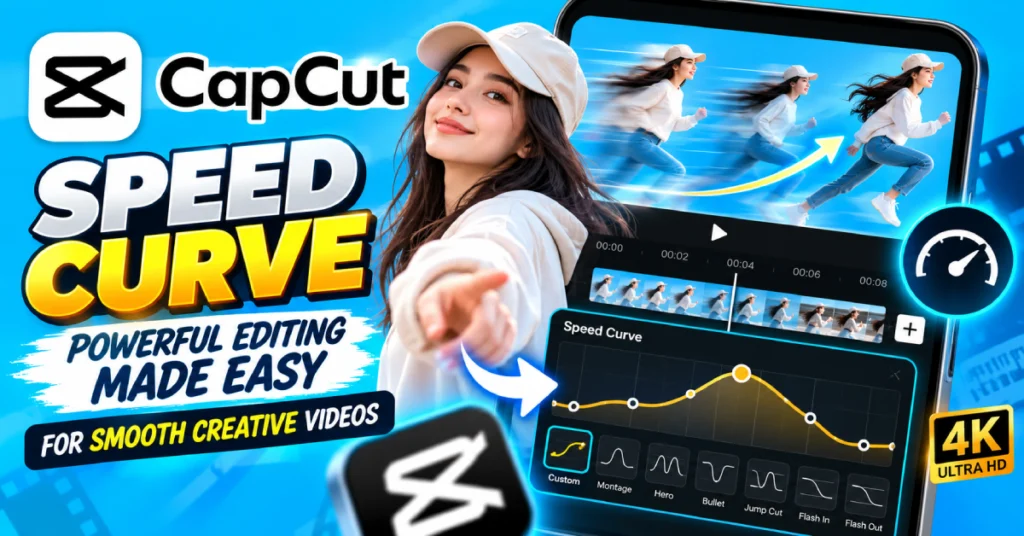
What Speed Curve Actually Does
A normal speed change affects the whole clip. If you set a video to half speed, everything stays slow. Speed Curve works differently. You can adjust the speed at different points within one clip. A section can stay at normal speed, slow down for a moment, and then become fast again.
That change creates the effect people often call speed ramping. You are basically telling CapCut how quickly each part of the video should move.
Finding Speed Curve in CapCut
Add your video to a new project and tap the clip on the timeline. Look for Speed, then open the curve option. Do not worry if the layout looks different in your app version. The button locations can change between versions and older tutorials.
You may find several ready-made speed curves. They can save time when you want to get an effect without much adjustment. For more control, choose the custom option.
That is where things get interesting.
Try a Simple Speed Change First
Do not start with a complicated curve. Take a short clip and slow down one part. Keep the opening normal. Slow down the section. Finish by returning to speed.
Watch it.
If the movement feels natural, you already understand the basic idea. Now try making the middle faster instead. You will notice that the same clip can feel completely different even though the footage itself has not changed.
This is one reason the CapCut video editor is useful for short form content. You can change the energy of a clip without recording anything again.
Use the Beat as Your Guide
Speed changes look better when they have a reason. Music is an easy one. Suppose your song has a strong beat coming after a quiet section. You could slow the footage just before that moment and return to normal speed when the beat hits.
For a dance video, the slow section might highlight a movement. For gaming content, you could slow down the moment before an important action and return to normal speed immediately afterward.
You do not need to change speed every few seconds. One well placed speed change can be enough.
Custom Curves Give You More Control
Preset curves are convenient, but custom curves let you decide exactly what happens. You can move the points on the curve to control when the speed changes begin and end. When the change feels too sharp add distance between the points to make it smoother If you want a sharper effect, bring them closer together.
When the change feels too quick, spread the points out to make it smoother. Speed curves are easier to understand by watching the result than by trying to understand every setting first.
Slow Motion Needs Good Footage
There is something worth remembering here. Slowing down a video does not magically create extra detail. If the original recording has a low frame rate, heavy slow motion can make movement look choppy.
If you record at a higher frame rate, slow motion usually has more information to work with. So if you know you want dramatic slow motion, think about that while recording the footage.
The CapCut Pro app may offer additional tools for working with speed and effects, but the quality of the original recording still matters.
Add a Little Motion
A speed change does not have to work alone. Pair it with a small zoom, simple camera movement, or another effect to add more movement. Take a pool jump as an example. Start with speed, slow down just before the person reaches the water and go back to normal speed when the splash occurs.
A small zoom during the slow section could make the moment stand out even more. That is enough. You do not need five different effects on top of it.
When Speed Changes Look Bad
There are a few signs that you have pushed the effect too far. The video may feel jerky. A person might suddenly move unnaturally fast. The music and visuals may stop matching. Or the viewer may not understand why the speed keeps changing.
When that happens, simplify it. Undo a few changes and try again with a longer transition between speeds. A smooth change from normal to slow often looks much better than an instant jump.
Speed Curve Ideas to Try
Once you are comfortable with the basic controls, experiment with different moments. A travel clip can start normally, speed up during a long road section, then slow down when you reach the destination.
A gaming clip can stay normal until an important moment, slow down for the action, then return to full speed. A fashion video can use a quick speed change between different outfits.
For a short photo or video montage, the speed can follow the rhythm of the music. CapCut Pro features allow you to combine speed effects with other editing tools, but each change should still serve a purpose.
Check the Full Video Before Exporting
After adjusting the curve, watch the entire clip without touching the controls. Look at the movement. Does the slow section feel smooth? Does the fast section feel too rushed? Does the speed change happen at the right moment?
Also listen to the audio. If the original sound becomes strange after changing speed, you may want to lower it or replace it with music. Once everything feels natural, export the finished video.
Final Thoughts
CapCut Speed Curve is one of those tools that becomes easier once you stop trying to make the effect perfect on the first attempt. Start with one simple slow section. Watch it. Move the curve points. Try again.
After a few edits, you will get a better feeling for how much speed change a clip can handle. The best speed ramps usually do not scream for attention. They simply make an important moment feel a little more powerful.
Frequently Asked Questions
What is CapCut Speed Curve?
Speed Curve lets you change the playback speed at different points within one video clip instead of keeping the entire clip at one speed.
Can I create slow motion with Speed Curve?
Yes. You can slow down a selected section and then gradually return the footage to normal speed.
Can Speed Curve make a video faster?
Yes. You can make some parts faster. Mix fast and slow sections in the same clip.
Why does my slow motion look choppy?
The original footage may not contain enough frames for heavy slow motion. Higher frame rate recordings generally provide better results.
Are CapCut Speed Curve presets useful?
Yes. Presets are a good starting point when you are learning. Once comfortable, custom curves give you more control over timing.
Do I need CapCut Pro for Speed Curve?
Basic speed editing is available in CapCut, although specific advanced features can vary by app version, platform, and region.