Change Aspect Ratio in CapCut for Any Video Format
Introduction
Different platforms use video sizes.. Learning how to change the aspect ratio in CapCut Pro helps you resize the same video, for TikTok, YouTube, Instagram, Facebook and other platforms. You will not lose any parts of the video. You can adjust the canvas size, reposition the video and fill any space with a suitable background.
This is especially useful when turning a horizontal YouTube video into a vertical Reel or Short. CapCut provides several common aspect ratios and resizing controls. Whether you edit with the regular app or CapCut Mod APK, understanding aspect ratio can save you from recording the same content again.
This guide explains the easiest ways to change video dimensions on mobile, PC, and Mac while keeping your main content visible.

What Is Aspect Ratio in CapCut?
Every video has a *aspect ratio** which is just a comparison of its width and height. This decides if the final video will be shown horizontally vertically or in a format.
For YouTube the 16:9 aspect ratio is used a lot.. Tiktok, Reels and Shorts use 9:16.
| Aspect Ratio | Common Use |
| 16:9 | YouTube and landscape video |
| 9:16 | TikTok, Reels and Shorts |
| 1:1 | Square social posts |
| 4:5 | Instagram feed posts |
| 3:4 | Portrait content |
Choosing the right ratio before doing detailed editing can save time later.
How to Change Aspect Ratio in CapCut?
Start with a project then bring your video into the timeline. This prepares everything you need to learn how to change aspect ratio, in CapCut.
Find the Ratio, Canvas, Format or a related resizing setting before making changes. Since CapCut is updated regularly the controls name and position may be different, on your device.
Choose the ratio you need, such as 9:16 or 16:9. CapCut will change the project canvas around your video.
Now resize and reposition your clip inside that canvas. If empty areas appear, you can keep them, add a background, or use a blurred version of the video to fill the space.
Always check the complete clip after resizing because subjects can move into different areas as the video plays.
How to Change Aspect Ratio in CapCut Without Cropping?
For the results put your whole original video inside the new canvas.Do not zoom in on the video until it fills the screen. This way you can see your video.
A 16:9 horizontal video and a 9:16 vertical frame have different proportions. As a result switching between them creates space. Making the clip big enough until the screen is full will cut off the right parts of the video.
Instead, reduce the clip until the complete frame is visible. Fill the remaining space with a blurred background, solid color, image, or another design.
This keeps your original content intact while still producing the correct output dimensions.
How to Change Aspect Ratio in CapCut on Android?
Open CapCut and create a project using your original video. Select the project canvas or available aspect ratio controls.
Choose the format required for your platform. After changing it, resize the original video so your important content remains inside the frame.
If empty space appears, add a suitable background rather than stretching the footage.
Our CapCut for Android page provides more information for users who mainly edit on Android phones and tablets.
Before exporting, watch the whole video. A person who starts in the center may move toward an edge later and become partly hidden if you have enlarged the clip.
How to Change Aspect Ratio in CapCut on iPhone?
The process on iPhone is similar. Add your footage to a new project and open the available format, canvas, or ratio settings.
Choose the required dimensions and adjust your video’s scale and position. Keep the full frame visible if avoiding cropping is your main goal.
Readers using Apple mobile devices can visit our CapCut for iOS page for more information about CapCut on iPhone and iPad.
Do not rely much on **pinch to zoom**. While **pinch to zoom** helps eliminate space making the footage bigger can move important sections of your original video outside the boundaries of the new frame.
How to Change Aspect Ratio in CapCut on PC?
Desktop editing can make resizing easier because you have a larger preview.
Import your video and place it on the timeline. Choose the required project ratio or canvas size. Once the canvas changes, adjust your clip’s scale and position.
Our CapCut for PC page provides more information for Windows users.
Use the preview to check the edges carefully. If you are converting landscape footage to vertical, decide whether showing the entire original frame is more important than filling every part of the screen.
I think tutorials and gaming videos need to have the frame. If you crop them people might miss some buttons or text.
How to Change Aspect Ratio in CapCut on Mac?
Mac users can follow almost the same desktop process. Add the video, choose the required project format, and resize the footage within the new canvas.
Our CapCut for Mac page provides additional information for macOS editors.
A bigger preview can help you put your subjects in the place more accurately. Before you export the video look closely at the words and pictures, near the edges because they might get cropped when you make the video bigger.
Of removing parts of the video footage by cropping you should add a background to the unused space. This will allow the entire video to remain visible.
How to Change 16:9 Video to 9:16 Without Cropping?
This is one of the most common aspect ratio changes. You may have a landscape YouTube video but want to reuse it for TikTok, Reels, or Shorts.
Change the project to 9:16 and reduce the horizontal footage until its full width fits inside the vertical canvas.
You will normally see empty space above and below the video. Instead of enlarging and cropping the sides, fill those areas with a blurred copy of the footage or another suitable background.
You can also rearrange some elements for vertical viewing. Text, stickers, and overlays can be moved independently to use the extra space more effectively.
How to Add a Blurred Background Instead of Cropping?
A blurred background is useful when your original video’s shape does not match the new canvas.
Fit the original clip inside the frame first. Then use the available canvas or background blur controls in your CapCut version.
The blurred area fills the unused space while keeping attention on the clear video in front.
This technique works particularly well for horizontal videos converted to vertical content. It looks cleaner than leaving large empty areas and avoids cutting important content.
Do not make the background too distracting. Its purpose is to fill space while keeping the original video as the main focus.
Which Aspect Ratio Should You Use for Social Media?
The best ratio depends on where you plan to publish.
For content shared on TikTok, Instagram Reels and YouTube Shorts the 9:16 format is what people expect. This format fits smartphone screens comfortably making it easy to watch videos. Regular YouTube videos are generally published in a 16:9 aspect ratio, which’s a different format. The 16:9 format is more traditional. Is often used for longer videos.
Square 1:1 and portrait 4:5 can work well for certain feed based social posts.
If you publish the same content on several platforms, consider creating separate versions. Changing only the canvas takes less time than rebuilding the entire edit.
Keep your original project so you can create additional formats later without starting from the beginning.
How to Keep Text and Overlays Inside the New Ratio?
Changing the project ratio can affect more than the main video. Text, stickers, overlays, and graphics may also need repositioning.
After changing dimensions, check every added element. Move anything that sits too close to the edge.
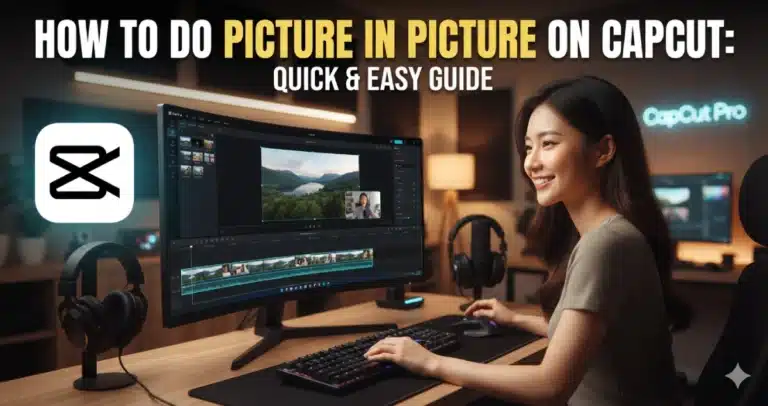
If your project contains another video layer, our guide on how to do picture in picture on CapCut can help you resize and reposition PIP content.
You can also use keyframes when an element needs to move during the video.
The final preview should always be watched at full speed. Even when an overlay appears correctly positioned in one scene, it may hide important content as the video plays.
Does Changing Aspect Ratio Reduce Video Quality?
Changing the canvas ratio alone does not necessarily make the original footage blurry. Problems are more likely when you enlarge low resolution footage too much.
For example, heavily zooming into a small section of a horizontal video can make details appear softer.
Start with the highest quality source file you have and avoid unnecessary scaling.
You can usually make looking video better. Our guide on how to improve video quality in CapCut tells you how to make the lighting better make the video clearer stabilize it and fix some issues that can affect the video quality in CapCut.
Your export settings also affect the finished result, so check them before saving the project.
Can You Change Aspect Ratio With CapCut APK?
Yes, supported versions of CapCut APK can provide canvas, format, or resizing options for changing project dimensions. The exact menu may vary depending on the release and device.
Import your video, find the available aspect ratio control, and choose the format you need.
If the new canvas creates empty areas, resize the original footage carefully rather than immediately zooming until everything is filled.
Older versions may use different menu names from current tutorials. Focus on finding the project format or canvas controls rather than expecting every interface to look identical.
Why Does CapCut Crop My Video After Changing Ratio?
CapCut may appear to crop the footage when the video has been enlarged to completely fill a canvas with a different shape.
Let’s take a **16:9* horizontal video. It cannot fill a **9:16** canvas and show every part of the video. You will have to either cut some of it or have space.
Reduce the scale until the full video becomes visible.
Then use a blurred background, solid color, image, or another design to fill the remaining space. This is usually the simplest solution when preserving the complete original frame matters.
How to Export After Changing Aspect Ratio?
Once your new format looks correct, watch the entire project before exporting. Check faces, subtitles, overlays, logos, and other important elements.
Then choose suitable resolution and frame rate settings for the destination platform.
Our best CapCut export settings guide is very useful because it explains the recommended export choices for TikTok and YouTube and Instagram and popular platforms.
Do not. Then reimport the same video multiple times just to make different aspect ratios. It is better to keep the CapCut project because this gives you more flexibility and helps reduce unnecessary compression of the CapCut project.
Create your other versions directly from the best quality source whenever possible.
Common Aspect Ratio Mistakes
Making the video bigger until it covers the screen without checking the cut is a mistake. This can push people’s text or objects out of the picture.
Another problem is stretching the video. Stretching changes the shape of people and objects, so resize proportionally instead.
Do not forget about text and overlays after changing formats. They may need to be moved to remain visible.
Finally, choose your main aspect ratio early when possible. Editing a complete project and changing its shape at the very end can create extra work because several elements may need to be repositioned.
Conclusion
With how to change aspect ratio in CapCut you can make versions of the same video for TikTok, Instagram, YouTube and other platforms. Remember that adjusting the canvas and cropping the video are processes.
After cutting off the video footage, put the whole video inside the new canvas. Then you can use a picture, a color or something else to fill the space that is not being used.
After you change the size of your video, always go back. Check everything. Look at the people in the video, the text, the images and the export settings.
When you understand how to change aspect ratio in CapCut you can use one project to make all kinds of videos. You can make a version, a vertical version and a square version. You do not have to edit the thing again.
Frequently Asked Questions
How to change aspect ratio in CapCut?
To understand how to change the aspect ratio in CapCut import your video. Access the available Canvas, Format or Ratio settings.Start by picking the sizes you want like **9:16** or **16:9**. Put the clip inside the canvas. If there is extra space around the video use a background to fill it.
How do I change the aspect ratio in CapCut without cropping?
Keep the original video visible by placing it inside the new canvas. Do not make it bigger to fill the screen.A horizontal video and a vertical frame have proportions so empty space is expected. Than cropping the original video keep the full frame visible and fill the extra space with a blurred background, a solid color, an image or another design that fits your style.
What aspect ratio should I use for TikTok and YouTube Shorts?
A **9:16** format is ideal, for **TikTok** **Instagram Reels** and **YouTube Shorts**. This is because vertical videos are the standard. Regular landscape **YouTube** videos commonly use **16:9** instead. Before creating your project consider both the platform and the type of content. This will help you choose the suitable dimensions. It is pretty simple.
Why does my video get cropped when I change to 9:16?
Because horizontal and vertical formats have shapes they don’t match up perfectly. Making a horizontal clip bigger to fill a **9:16** The frame can cut off the sides. To avoid that, fit the video inside the canvas and fill the remaining space with a blurred background, solid color, image or another good design.
Does changing aspect ratio lower video quality in CapCut?
Changing the project ratio does not make your video look bad by itself.. If you take low-resolution footage and make it bigger or cut it up a lot it will look soft. To keep your video looking good you should use a quality video and use the right resolution and frame rate when you are done.