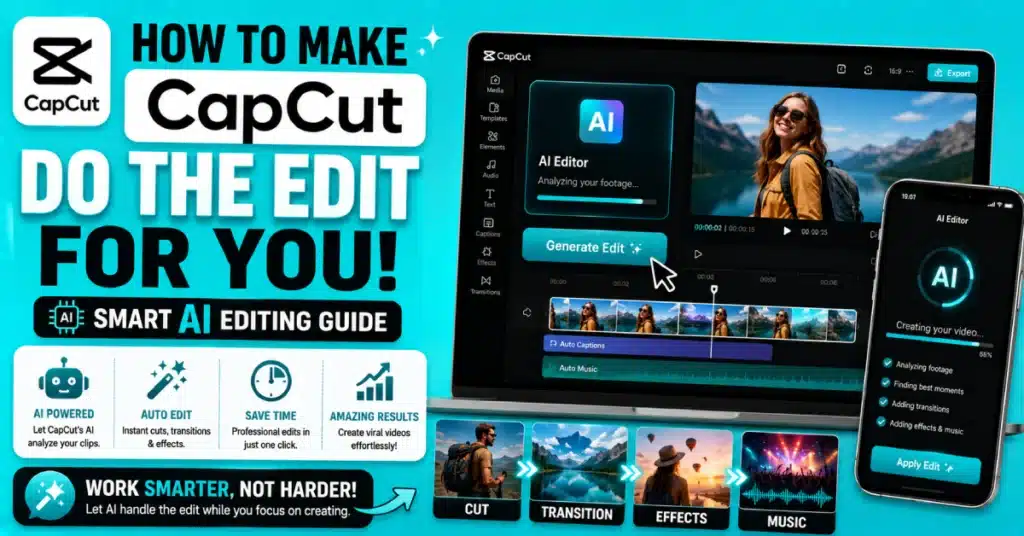
How to Make CapCut Do the Edit for You? – Powerful 2026 Tutorial
How to make CapCut do the edit for you — yes, this is actually possible. There is no reason to spend endless hours editing everything by hand. CapCut offers AI features that can take care of clip trimming, music timing, and transitions. Many people still miss these tools.
You record a video, open CapCut. It’s done in minutes.No skills needed. No long tutorials to follow. That is exactly what the auto edit features are designed for.
CapCut Pro APK gives you access to some of the most powerful AI editing tools available on a mobile app right now. This guide covers every major auto feature — what it does, where to find it, and how to use it properly.
What Does “Auto Edit” Mean in CapCut?
Most people are talking about CapCut AI features when they ask how to let CapCut edit their videos. The CapCut AI features scan the clips you give them. They do the editing for you. Add things like transitions and captions to your video.
CapCut has several of these:
- Auto Captions — generates subtitles from your video audio automatically
- AI Script — writes a script based on a topic you give it
- Smart Cut — trims silence and awkward pauses from clips
- Auto Beat Sync — matches your video cuts to the music rhythm
- Templates — pre-built edits you just drop your clips into
- AI Effects — applies visual styles to your video in one tap
Each one saves time in a different way. Together they can handle almost your entire editing workflow.
How to Use CapCut Templates to Auto Edit?
For fast editing, templates are hard to beat. They come pre-built with transitions, effects, music, and timing already arranged. You just replace the clips with yours.
Here is how to do it on phone:
- Open CapCut and tap the Templates tab at the bottom
- Browse or search for a style you like
- Tap on a template to preview it
- Tap Use Template
- Select your own video clips or photos from your gallery
- Tap the export button
That is it. CapCut applies all the effects, cuts, and music automatically. This is honestly the easiest answer to how to make CapCut do the edit for you — especially for beginners.
If you want to learn how to edit on CapCut mobile with more control, you can customize the template after applying it. Change the music, adjust clip timing, or add text on top.
How to Use Auto Captions in CapCut?
Auto captions are a huge time saver. If you make talking videos, tutorials, or vlogs — you know how long it takes to add subtitles manually. CapCut does it in seconds.
Steps to use it:
- Import your video into CapCut
- Tap Text in the bottom menu
- Select Auto Captions
- Choose your spoken language
- Tap Start and wait a few seconds
- CapCut generates all the subtitles automatically
You can edit individual captions if something is wrong. But most of the time the accuracy is pretty good. This feature alone saves 20 to 30 minutes on a single video.
For mobile users learning how to use CapCut step by step on the phone — auto captions should be one of the first features you try. It makes your videos more accessible and ready for social media immediately.
How to Use Auto Beat Sync?
Beat sync is one of the coolest features in CapCut. It automatically matches your video cuts to the beat of the music. So every time the beat drops, the clip changes.It looks highly professional and requires very little effort.
Here is how to do it:
- Start a new project and add your clips
- Add a music track from CapCut’s library or your own
- Tap the Audio section
- Look for Beat Sync or Auto Sync option
- Turn it on and let CapCut place the cuts automatically
This is perfect for how to edit on CapCut for tiktok style videos. TikTok content works best when the video timing matches the music. Beat sync handles that automatically.
You can visit CapCut for Android for setup help if you are using an Android device.
How to Use Smart Cut Feature?
Smart Cut removes dead air and silence from your videos. If you are recording a talking video and you pause a lot, stutter, or say “um” repeatedly — Smart Cut can clean all of that up automatically.
To use it:
- Import your clip into a new project
- Tap the clip to select it
- Look for Smart Cut or AI Cut in the editing tools
- Tap it and let CapCut analyze the audio
- It will mark the silent sections and remove them
This tool is very helpful for people learning how to edit on CapCut like a pro. Professional editors always remove dead air. Now CapCut does it for you in one tap.
How to Edit Video in CapCut PC Using Auto Features?
CapCut on PC has the same AI tools but with a bigger screen and more control. If you are doing longer videos or more detailed projects, the PC version is worth using.
For how to edit video in CapCut pc with auto tools:
- Download and open CapCut on your Windows computer
- Start a new project and import your clips
- Use the AI tools panel on the right side
- Auto Captions, Beat Sync, and Smart Cut are all available
- Export in high resolution when done
PC editing is smoother for longer content like YouTube videos. The timeline is easier to navigate and the performance is better for high quality clips.
Check CapCut for PC for download and installation steps.
How to Make Good Edits on CapCut Without Pro?
Not everyone wants to pay for a subscription. The good news — you can still make solid videos without it. Here is how to make good edits on CapCut without pro:
- Use free templates from the Templates tab
- Use Auto Captions — this is free
- Use Beat Sync — also free in the basic version
- Use CapCut’s free music library
- Use free filters and color presets
The free version has enough tools to make clean, watchable videos. Pro features add more effects and remove watermarks, but the core auto editing features are available to everyone.
You can also check CapCut APK for more details on what features are available in different versions.
The official CapCut Play Store page also lists current features and what is free versus paid.
How to Do Transitions on CapCut Mobile Automatically?
Transitions between clips can be added manually or automatically. For automatic transitions:
- Add multiple clips to your timeline
- Tap the small white box between two clips
- Browse the transition options
- Select one and tap Apply to All
This applies the same transition to every clip change in your video. One tap — done. For how to do transitions on CapCut mobile this is the fastest approach.
If you want different transitions on each clip, you tap each box individually and choose separately. But for quick edits, Apply to All is the way to go.
How to Make CapCut Edits for YouTube?
YouTube videos need a bit more than TikTok videos. Longer content, better structure, maybe an intro and outro. Here is how to make video on CapCut for youtube using auto features:
- Use a YouTube-style template from the Templates section
- Use Auto Captions for the full video
- Use Smart Cut to remove pauses and silence
- Add chapters using the text tool
- Use CapCut’s AI thumbnail generator if available
For how to edit video for youtube CapCut — keep the video resolution at 1080p minimum. CapCut allows export at high quality even on free versions.
Visit CapCut for iOS if you are editing YouTube content from an iPhone or iPad.
How to Make CapCut Video Using AI Script?
This one is underused. CapCut has an AI Script tool that writes a video script for you based on a topic. Then it can even generate a voiceover. So you can create a full video with AI writing and narrating it.
Steps:
- Open CapCut and go to AI tools or Script section
- Type in your video topic
- Let the AI generate a script
- Choose a voiceover voice
- Add your visuals or use AI-generated backgrounds
This is literally how to make CapCut edits from scratch without recording anything yourself. Great for faceless YouTube channels or quick informational content.
For Mac users doing this kind of content, Download CapCut for Mac and explore the AI tools in the desktop version.
Auto Edit Feature Comparison Table
| Feature | What It Does | Available On |
| Templates | Full auto edit with effects and music | Mobile and PC |
| Auto Captions | Generates subtitles from audio | Mobile and PC |
| Smart Cut | Removes silence and dead air | Mobile and PC |
| Beat Sync | Matches cuts to music rhythm | Mobile and PC |
| AI Script | Writes and narrates video content | Mobile |
| Auto Transitions | Applies transitions to all clips in one tap | Mobile and PC |
Tips to Get the Best Results From Auto Editing
Well, even auto tools work better when you set them up properly. Here are a few things that help:
- Use good lighting when filming — AI tools work better on clear footage
- Keep clips short — shorter clips give auto features more to work with
- Use CapCut’s own music library for best Beat Sync results
- Review auto captions before exporting — small errors happen
- Pick templates that match your video style and content length
Honestly, combining two or three auto features together gives the best result. Use a template, add auto captions, and apply beat sync. That alone creates a very clean final video.
For older device users who face performance issues, CapCut Old Version may run smoother on lower-end phones.
Our Blog has more detailed guides on specific CapCut features if you want to go deeper on any of these tools.
And if you want access to more premium AI editing features, CapCut Pro MOD APK is worth exploring for advanced users.
How to Edit the Video From CapCut After Auto Edit?
So CapCut auto edited your video — now what? You still want to review it before posting. Here is how to edit the video from CapCut after the AI does its part:
- Watch the full preview once
- Fix any caption errors by tapping on the subtitle
- Adjust any clip that does not look right
- Change the music volume if it is too loud
- Export at the highest quality your device supports
Auto editing is a starting point. A quick review and small manual touches make the final result much better.
For users learning how to make CapCut video for the first time — do not skip the review step. It takes 2 minutes and makes a big difference in the final quality.
Also check CapCut Pro apk Download for the latest version with updated AI tools.
Conclusion
How to make CapCut do the edit for you is not complicated at all once you know where to look. Templates, Auto Captions, Smart Cut, Beat Sync, AI Script — these tools are all inside the app waiting to be used. Start with templates if you are new. Try auto captions next. Then explore beat sync and smart cut as you get more comfortable. Each feature saves real time and makes your videos look more polished.
Go try it now — Download CapCut Latest Version and let the AI handle the hard parts for you today.
Frequently Asked Questions
How do I make CapCut auto edit my video?
Try CapCut Templates. Choose one tap **Use Template** then add your clips. The app adds effects and music.
Can CapCut edit videos by itself without me doing anything?
Yes a lot. CapCut features like Templates and Auto Captions and Smart Cut and Beat Sync do the editing work for you in CapCut. You import your footage into CapCut. Then you check the result of your video.
Is auto editing on CapCut available for free?
Yes. Most auto features including Templates, Auto Captions, Beat Sync, and Smart Cut are available on the free version. Premium templates and certain advanced AI effects may require Pro access, but you do not need to pay to make high quality shareable videos.
Which CapCut feature saves the most editing time?
Templates save the most time for short videos. For longer talking videos, Auto Captions saves the most because subtitling manually takes very long. Smart Cut is great, for videos you record yourself. It removes moments and pauses. That helps you finish editing.
Does CapCut auto editing work well for TikTok and YouTube?
Yes this is a fit for both TikTok and YouTube. For TikTok I use Beat Sync and the templates to make content. For YouTube I think Smart Cut and Auto Captions are better, for videos. CapCut has templates and tools designed for both platforms so you can get platform-ready videos quickly.
Can I edit the video after CapCut auto edits it?
Yes. CapCut auto editing is like a version of your video. After the automatic edit is done you can make small changes to create a final video.